

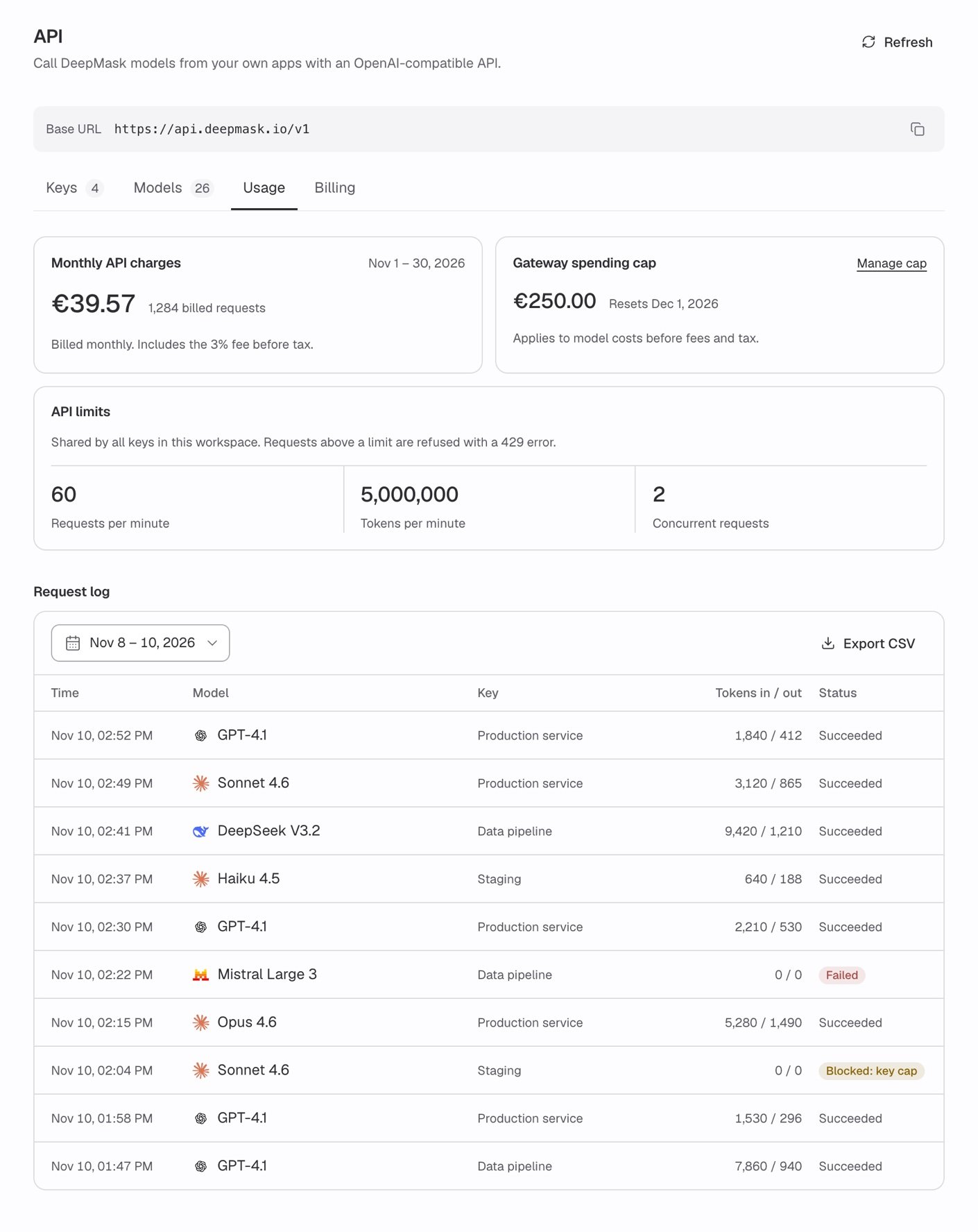
The Usage tab shows monthly charges, your spending cap, API limits, and the request log.
The Gateway spending cap and API limits cards appear after you first click Enable API billing. See Billing.
Monthly API charges
The Monthly API charges card shows what your organization has been charged so far in the current billing period. It shows:- The billing period, next to the title. A period is one calendar month in UTC, from 00:00 UTC on the 1st to the end of the month.
- The amount charged so far this period. It includes the 3% fee and excludes tax, as the note “Billed monthly. Includes the 3% fee before tax.” says. Your invoice adds VAT where applicable.
- The number of requests charged this period, for example “1 billed request” or “248 billed requests”.
Requests still being checked
Sometimes the card shows a warning such as “Requests still being checked: 2. This month’s total may change.” This means DeepMask is still checking the recorded usage of some of this month’s requests before deciding what to charge. This happens when DeepMask can’t yet verify or price that usage, for example while it confirms a model’s current price, or when usage is recorded for a request that failed or was refused. The count can also include unclear outcomes over the allowance of 20 in any 24 hours. The amount and the billed request count can change once that check finishes.Gateway spending cap
The Gateway spending cap card shows your organization-wide cap. This cap is shared by all your API keys. Once your organization’s spend passes it, DeepMask refuses further requests until the cap resets or you raise it. The card shows:- The cap amount, in €.
- The reset date, for example “Resets Dec 1, 2026”. The cap resets monthly at 00:00 UTC on the 1st. If the date can’t be loaded, the card shows “Reset date unavailable”.
- The note “Applies to model costs before fees and tax.” The cap counts model costs only, while Monthly API charges includes the 3% fee.
The reset date appears in your browser’s time zone. If you’re west of UTC, a reset at 00:00 UTC on the 1st can show as the last day of the previous month.
API limits
The API limits card shows how much traffic your organization can send. These limits are shared by all your keys. Requests above a limit are refused with a429 error.
The card shows your organization’s current values. You can’t change them on this page. To ask for higher limits, see Requesting higher limits. See Limits and fair use for the default values and how each limit is counted. See 429: rate and capacity limits for how to handle a
429 error.
Request log
The Request log lists the requests your organization’s API keys have made. Use it to check whether a request succeeded, which key and model it used, and how many tokens it consumed.Choosing a date range
Click the date range button above the table to open the picker. Choose one of the Quick ranges to apply it right away. Or select a start and end day in the calendar and click Apply.
A range can cover up to 62 days. It must also fall within the last 62 days and end today at the latest. Otherwise, the page shows “Pick a range of up to 2 months within the last 2 months.”
The days you pick are calendar days in your browser’s time zone. Your chosen range stays in place when you click Refresh.
Reading the log
The table shows 25 requests at a time. Click Load more at the bottom to see the next 25. If no requests match the range, the table shows “No requests in this range.”
A request appears in the log shortly after it finishes. Requests that are still running, such as a long stream, don’t show yet. The log doesn’t update on its own. Click Refresh at the top of the page to load new entries.
Status values
If DeepMask records a different status, the log shows that status as recorded.
Requests missing from the log
The log lists the requests DeepMask accepted for processing, including requests that failed later with an error (Failed). It also lists requests blocked by a spending cap (Blocked: key cap or Blocked: gateway cap). Requests that DeepMask refuses for other reasons before processing them never appear, for example:- Requests with a missing, invalid, or revoked key.
- Requests sent while your organization can’t use the API, for example when API billing isn’t active, an API invoice payment failed, or requests are paused for a usage review.
- Some requests with an invalid request body, for example invalid JSON, a compressed body, an image link, or an image sent to a model without image input.
- Requests for an endpoint DeepMask doesn’t offer.
- Requests for a model the key isn’t allowed to use.
- Requests refused by a key’s flood guard, or because the key already has too many requests or too much request data in flight. See 429: rate and capacity limits.
- Calls to
GET /v1/models.
response_format, and a sampling option outside its accepted range, such as a temperature above 2. An image that is over a size, count, or pixel limit, or that doesn’t match its media type, also appears this way. See Sampling options and Unsupported parameters for the fields and ranges the API accepts.
To troubleshoot these requests, check the error code in the API response. See Errors and retries.
Exporting the request log
Click Export CSV to download the request log for the range shown in the table. The file contains every request in that range, not only the rows you have loaded. If your range includes today, the file includes requests up to the moment you export. It can therefore contain requests newer than the rows in the table. The button is unavailable when the table is empty. The file is nameddeepmask-api-requests-<start>_<end>.csv, using the first and last day of your range, for example deepmask-api-requests-2026-11-01_2026-11-07.csv.
CSV columns
The table shows times in your local time zone, but the CSV uses UTC. The file is UTF-8 with a byte order mark (BOM) and opens directly in spreadsheet apps. To prevent spreadsheet formulas from running, DeepMask adds a leading
' to any cell that starts with =, +, -, @, a tab, or a carriage return.Export limits
- Row limit: One export can contain up to 50,000 requests. For a larger range, the page shows “Too many requests in this range to export. Pick a shorter range.”
- One export at a time: Each organization can run one export at a time. If an export is already running for your organization, for example one started by another admin or in another tab, the page shows “An export is already running for this organization. Wait for it to finish.”
- Time limit: A large export can take a few minutes. If it doesn’t finish within 5 minutes, the page shows an error. Pick a shorter range and try again.
- Interrupted downloads: If a download fails partway, the page shows an error and no file is saved. You never get a partial file that looks complete. Export again.
How long request logs are kept
DeepMask keeps request logs for 60 days and deletes older entries automatically. The date picker lets you choose up to 62 days, so the oldest days of a Last 2 months range can be empty. Deleting old log entries doesn’t affect billing. DeepMask keeps billing records separately, so your charges and invoices stay complete.Request log and billing
The request log is an operational record. It shows what happened to each request but not what it cost. Use these places for charges instead:- Monthly API charges on the Usage tab shows this month’s running total.
- Invoices on the Billing tab lists your API invoices. See Billing.
- The log covers every recorded request, while the monthly total counts only charged requests.
- The log shows days in your time zone, while billing periods follow UTC calendar months.
- Requests from the last minutes of a month can appear on the next invoice. See Invoice timing.
- The monthly total excludes tax, while your invoice adds VAT where applicable. See What you pay.
This page covers the DeepMask API only. For token usage in DeepMask Chat, see Token usage.
Related pages
Spending caps
Set the organization-wide cap and optional per-key caps.
Billing
Enable API billing, read invoices, and understand how charges work.
Limits and fair use
See the rate, token, and budget limits and how each one is counted.
Errors and retries
Look up error codes and learn which errors to retry.
API keys
Create, name, and revoke the keys that appear in your request log.