

Only organization admins see API in the settings sidebar. Every admin can create, review, and revoke all of your organization’s keys.
Before you start
To create a key, your organization needs:- An active paid plan: Pro, Power, or Enterprise. The Free plan doesn’t include API access. A trial, or a plan with an overdue payment, doesn’t count.
- API billing enabled. Open the Billing tab and click Enable API billing. See Billing.
- No API invoice with a failed payment.
- No usage review in progress. While DeepMask reviews recent usage, you can’t create keys. See When requests are paused.
Creating a key
1
Open the Keys tab
Go to User Settings > API and stay on the Keys tab. Click Create key.
2
Name the key
Enter a Key name that identifies the app or environment, such as “Production service”. Names can have 1–80 characters, without control characters such as tabs or line breaks.
3
Set a key spending cap (optional)
Enter an amount in euros under Key spending cap (optional) to limit what this key can spend each month. Leave it empty to rely on the organization-wide cap only.
4
Choose the key's models
Under Model access, keep Choose models and select the models this key can use. Or choose All current models to grant every model in the catalog today.
5
Create the key
Click Create key at the bottom of the dialog. DeepMask shows the new key once, so copy and store it right away.
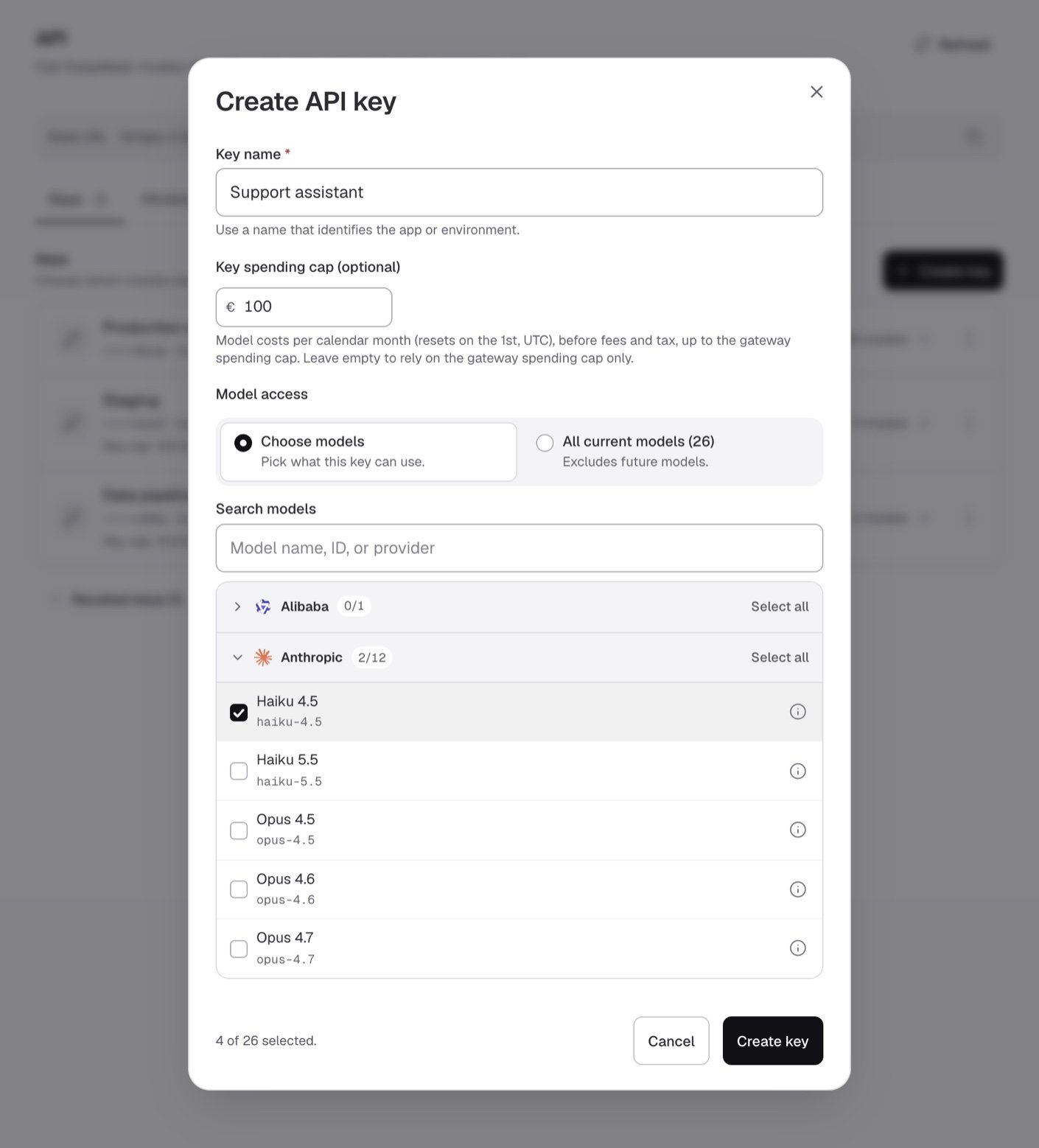
Name the key, set an optional cap, and pick the models it can use.
Choosing models
Model access offers two options:
With Choose models, models are grouped by provider:
- Type in Search models to filter by model name, ID, or provider.
- Provider groups start collapsed. Click a provider to show or hide its models. When you search, every matching group opens.
- The count next to a provider, such as
2/12, shows how many of its models you selected. - Click Select all or Clear to change a whole provider at once. While you search, these buttons read Select matches and Clear matches.
- Click the ⓘ button next to a model to see its details, including its context window, image input and tool calling support, and pricing. See Model details while creating a key.
Image input in a model’s details refers to the API. A model can show Not supported even when it accepts images in DeepMask Chat. If your app sends images, grant at least one model that shows Supported. You can’t add models to a key later. See Image input for the models that accept images and Image limits for the limits.
Setting a key spending cap
A key spending cap limits one key’s monthly model costs and can’t be more than the Gateway spending cap, which is the organization-wide cap shared by all keys. See Key spending caps for the rules and how both caps work together.Saving your key
After you click Create key, the dialog changes to Save your API key. It shows the key’s name, its number of models, and the full key under API key. Keys start withsk- followed by 64 hexadecimal characters.
1
Copy the key
Click Copy key. The button changes to Key copied. If copying fails, the key is selected so you can copy it yourself.
2
Store it securely
Save the key in your secret manager or as an environment variable, such as
DEEPMASK_API_KEY.3
Close the dialog
Click I’ve saved it. This is the only way to close the dialog while the key is shown.
Testing your key
Before you click I’ve saved it, you can test the key from the same dialog.1
Set the environment variable
Set
DEEPMASK_API_KEY in your terminal, for example with export DEEPMASK_API_KEY="sk-...".2
Copy the test command
Expand Test your key and click Copy command.
3
Run the command
Run the command in the same terminal where you set the variable. It sends “Hello” to one of the key’s models. A JSON response with a reply means the key works.
Reviewing your keys
The Keys tab lists your organization’s keys, newest first. The number on the tab counts every key that isn’t revoked.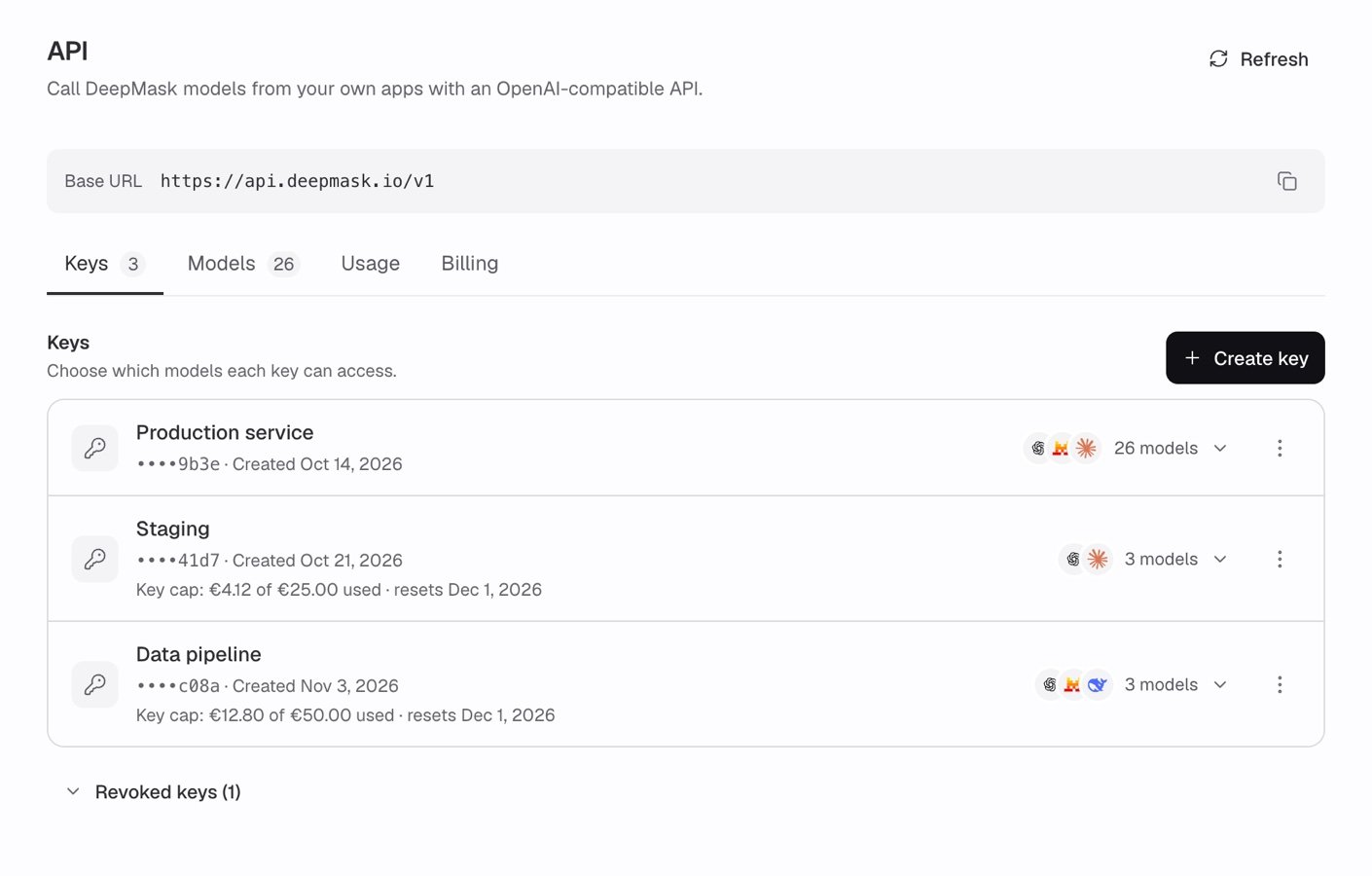
The Keys tab lists each key with its models, status, and cap usage.
The key cap line changes as the key spends, for example when the cap is reached. See How the key list shows cap usage for each variant.
Dates show in your local time zone, so the reset at 00:00 UTC on the 1st can appear as the last day of the previous month.
Viewing a key’s models
Click the model count on a key, such as 3 models, to expand its Model access list. Each model shows its name and, when it differs, its API model ID. Click a model to copy its ID for themodel field of your requests.
Your app can also call GET /v1/models with the key. It returns only the models that key can use. See Models.
Key statuses
Why a key is inactive
A key shows Inactive when something on your organization’s account blocks API requests. The notice at the top of the API page tells you the cause and how to fix it. See Account notices for every notice and what to do about it. Keys also show Inactive while API access for your organization is being set up. The notice then says “API access is being set up. New keys stay inactive until it’s ready.” A key can also show Inactive for a moment while a change to your account is applied. If a key stays Inactive and no notice explains why, open the Billing tab and check the API billing status. While a key is Inactive, your app’s requests with it are refused. Depending on the cause, your app gets one of these errors:403API_SUBSCRIPTION_INACTIVE: your paid plan or API billing isn’t active.403API_SUBSCRIPTION_INACTIVEor402API_PAYMENT_FAILED: an API invoice payment failed. Most failed payments make the subscription past due and return403. See If a payment fails.503API_ADMISSION_UNAVAILABLE: API access for your organization is still being set up, a change to your account is still being applied, or requests are paused while DeepMask reviews recent usage. Unclear outcomes, such as provider errors or broken streams, pause requests only when your organization has more than 20 within 24 hours. Usage that DeepMask can’t verify yet can also pause requests. See When requests are paused.503API_ACCOUNTING_REVIEW: requests are paused while DeepMask reviews recent usage, and the request was already being processed when the pause began.401API_CREDENTIAL_INVALID: your organization’s API account is closed.
Editing a key’s spending cap
To add, change, or remove a key’s cap, click ⋮ next to the key and choose Edit spending cap. See Add, change, or remove a key cap for the steps.Changing a key’s models
You can’t change which models an existing key can use. This also means All current models never picks up models added to the catalog later. To give an app a different set of models, replace its key:1
Create a new key
Click Create key and choose the models the app needs.
2
Update your app
Replace the old key in your app’s secret store or environment, then deploy the change.
3
Revoke the old key
Once your app works with the new key, revoke the old one.
Revoking a key
Revoke a key when an app no longer needs it, or right away if the key may have leaked.1
Open the key's actions
Click ⋮ next to the key and choose Revoke.
2
Confirm
In Revoke this key?, click Revoke. Apps using the key lose access immediately. This can’t be undone.
Revoked keys
Revoked keys move to Revoked keys below your key list. The section starts collapsed and shows how many revoked keys you have, such as Revoked keys (1). Click it to see each key’s name, last characters, revocation date, and model count. It lists up to 150 revoked keys, most recently created first. Requests made with a revoked key keep its name in the Request log. See Usage and logs.Security best practices
- Use one key per app and environment. For example, create separate keys for “Production service” and “Staging”. You can then revoke one without affecting the others. The Request log also shows which key made each request. Your organization’s Requests per minute, Tokens per minute, and Concurrent requests limits apply to all keys together, so extra keys don’t raise them. See Fair use.
- Name keys clearly. Key names don’t have to be unique, so pick names that tell your keys apart.
- Grant only the models an app needs. Use Choose models instead of All current models when an app needs a few models.
- Set a key spending cap. A cap limits what a single key can spend if it’s misused.
- Keep keys out of your code. Store keys in a secret manager or an environment variable such as
DEEPMASK_API_KEY. Never commit a key to source control. - Call the API from your server. Never put a key in browser, mobile, or desktop app code, where anyone can extract it.
- Rotate keys regularly. Create a new key, update your app, confirm it works, then revoke the old key.
- Revoke leaked keys immediately. If a key may be exposed, revoke it first. Then create a replacement and review the Request log for requests you don’t recognize.
- Review your admins. Every organization admin can manage all API keys. Keep your list of admins current. See Team management.
Troubleshooting
“Revoke an existing key before creating another”
“Revoke an existing key before creating another”
Your organization can have up to 50 keys that aren’t revoked. Keys that show Pending or Revoking count too. Revoke a key you no longer need, then try again. See Account limits.
“Key creation could not be completed”
“Key creation could not be completed”
DeepMask couldn’t finish setting up the key, so it never showed you a secret. The failed key is revoked automatically. Click Refresh, then create the key again.
“Too many API management changes. Retry shortly.”
“Too many API management changes. Retry shortly.”
Your organization can make up to 20 changes per minute on the API page, shared by all admins. Creating and revoking keys, saving caps, enabling, canceling, or keeping API billing, and clicking Refresh all count. Viewing the page doesn’t. Wait a minute and try again. See Account limits.
Your app gets API_CREDENTIAL_INVALID
Your app gets API_CREDENTIAL_INVALID
The key is missing, mistyped, or revoked. Check that the request sends exactly one
Authorization: Bearer <key> header. Then check that the key’s last characters match a key in your list that doesn’t show Pending or Revoking and isn’t under Revoked keys. See Errors and retries.Your app gets API_MODEL_NOT_ALLOWED
Your app gets API_MODEL_NOT_ALLOWED
The key can’t use the model in the request. Expand the key’s models on the Keys tab and copy a granted model ID. To use another model, create a new key that includes it.
Your app gets API_KEY_SPENDING_CAP
Your app gets API_KEY_SPENDING_CAP
The key reached its own spending cap. Raise or remove the cap with Edit spending cap, or wait for the reset at 00:00 UTC on the 1st. Your other keys keep working. See Spending caps.
Related pages
Spending caps
Set the organization-wide cap and caps for each key.
Usage and logs
See which keys make requests and what they cost.
Limits and fair use
See the rate, token, and account limits that apply to your keys.
Errors and retries
Handle authentication and access errors in your app.