

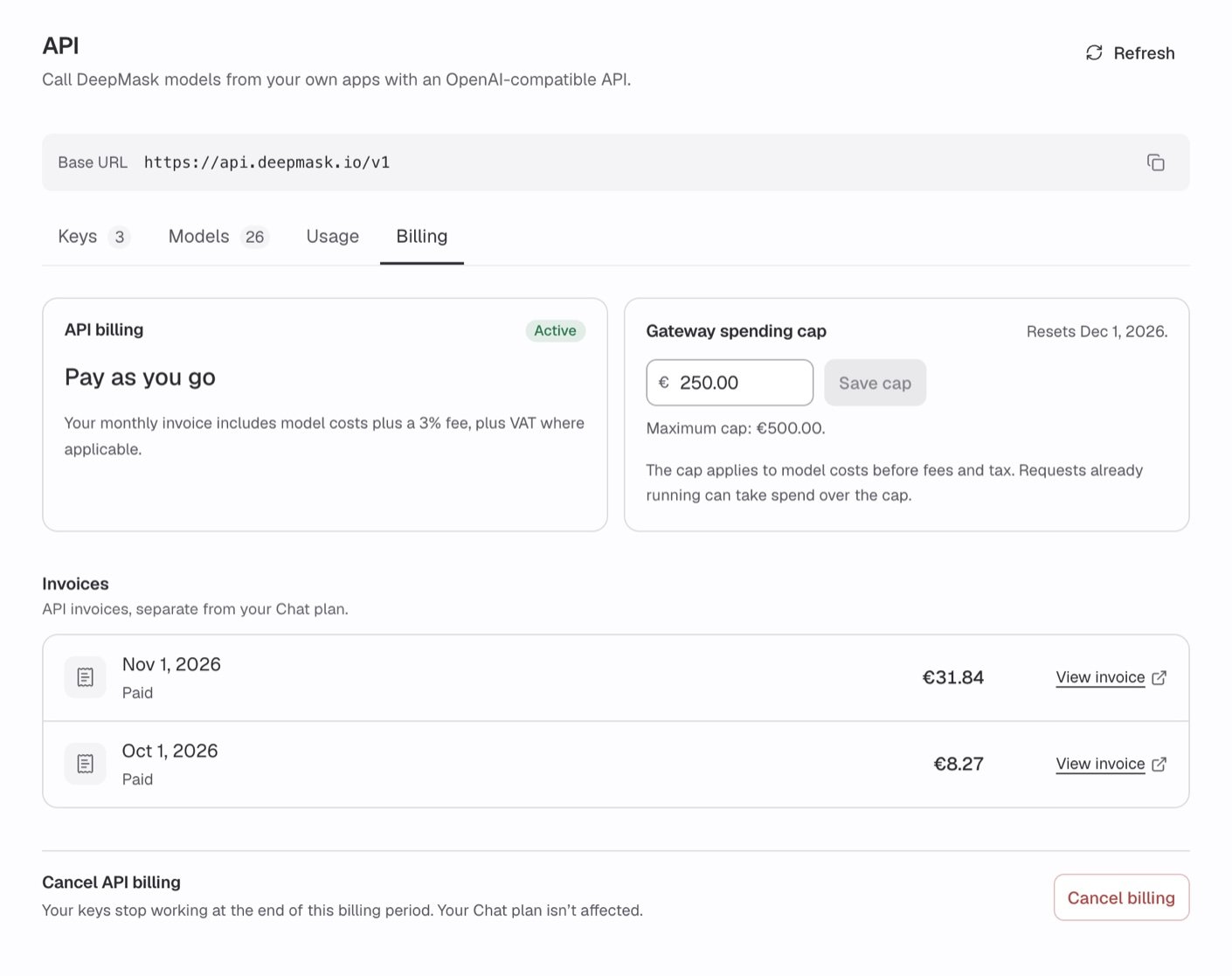
The Billing tab shows your API billing status, what your invoice includes, the Gateway spending cap, API invoices, and the cancel option.
Before you start
- You need to be an organization admin. Only admins see API in the settings sidebar.
- Your organization needs an active paid Chat plan: Pro, Power, or Enterprise. The Free plan and trials don’t qualify. A Chat plan with an overdue payment doesn’t qualify either.
- Keys need active API billing. You can create keys only after API billing shows Active. See API keys.
Enabling API billing
1
Open the Billing tab
Click your name at the bottom of the chat sidebar, choose User Settings, click API, and select the Billing tab. The API billing card shows Not enabled.
2
Start checkout
Click Enable API billing. You can also click it in the notice that appears on the other tabs. DeepMask takes you to Stripe Checkout.
3
Add your payment and billing details
Checkout asks for a payment method and a billing address. If your organization already has a name and billing address on file, checkout fills them in. You can also add a VAT ID, which is optional.
- Checkout uses the same billing account as your Chat plan. A name, address, or VAT ID you change or add here also applies to your Chat plan’s billing.
- Checkout creates a separate API subscription.
- You aren’t charged at checkout. You’re first charged for usage after the current month ends.
4
Return to DeepMask
After checkout, you return to the Keys tab of the API page, which refreshes automatically. Select the Billing tab and check that the API billing card shows Active. If it doesn’t yet, click Refresh at the top of the page.
Enabling API billing never changes your Chat plan or its price. API usage never appears on your Chat invoices.
What you pay
Your monthly API invoice shows one usage charge: the model costs of your requests plus a 3% fee. The fee isn’t billed as a separate line. VAT is added on top where applicable, based on the billing address and VAT ID on your billing account. The API billing card on the Billing tab sums this up: “Your monthly invoice includes model costs plus a 3% fee, plus VAT where applicable.” Other parts of the API page, such as the Usage tab and the spending cap fields, call it tax. To change your billing address or VAT ID after checkout, contact support. The usage charge is calculated like this:
For example, €50 of model costs is billed as €51.50 before VAT.
The Models tab shows each model’s input and output rates per 1M tokens with the 3% fee already included. Apply these rates to a request’s tokens to get what you’re invoiced for it, before VAT. Don’t add the fee again. Prices update automatically, so check the Models tab for current rates rather than saving a copy.
The rates on the Models tab and the Monthly API charges total on the Usage tab are shown before VAT. The amounts in the Invoices list are invoice totals, including any VAT.
Some models charge a higher rate for very long prompts. Some also bill cached input at a lower rate. See Models for how these rates work.
Images you send count as input tokens. They’re billed at the same input rates as text. See How images are billed.
What is and isn’t charged
Charged:- Requests that complete, for the input and output tokens they use.
- Requests where your app disconnects or times out after DeepMask sent the request to the model. The request still completes on DeepMask’s side and is billed like any other.
- Usage that the provider still reports later for a request with an unclear outcome. It’s billed like any other usage.
- Requests DeepMask refuses before they reach a model. Examples are an invalid or revoked key, a model the key can’t use, an invalid request or image, a rate limit, or a reached spending cap.
- Requests where your app disconnects before DeepMask sends the request to the model.
- Requests the model provider rejects as invalid before producing output, such as a prompt longer than the model’s context window or an image the provider can’t process.
- Requests with an unclear outcome, where DeepMask can’t tell whether the request finished. Examples are a server error or timeout at the model provider, a stream that breaks off midway, and a request that reaches the 15-minute limit. An unclear outcome doesn’t pause your organization’s requests on its own.
Invoice timing
Your API billing period follows the calendar month in UTC. The first period runs from the day you enable billing to the end of that month. After that, each period covers one full month. Shortly after each period ends, DeepMask issues the invoice for that period. It covers that period’s model costs and the 3% fee, plus VAT where applicable. The invoice is charged automatically to the payment method you added at checkout. If that payment fails, see If a payment fails. To see the current month’s total before the invoice arrives, check the Monthly API charges card on the Usage tab. It includes the 3% fee and excludes VAT. See Usage and logs.Requests in the last minutes of a month can be recorded after the billing period has closed. Those requests appear on the next invoice. The Usage tab still counts them in the month they started, so a month’s usage total can differ slightly from that month’s invoice. If API billing ended with that period, see Canceling API billing.
Invoices
The Invoices list on the Billing tab shows your API invoices only. Invoices for your Chat plan stay under Billing in the settings sidebar. Each row shows the invoice date, its status, and the amount. Statuses are Paid, Open, Uncollectible, Void, and Draft. A new invoice shows Draft for about an hour after the period ends, until it’s finalized.- Click Pay invoice to pay an open invoice that still has an amount due.
- Click View invoice to see any other finalized invoice. Draft invoices have no link until they’re finalized.
- An invoice marked Uncollectible that still has an amount due must be paid before API access returns. Click View invoice and pay it on the invoice page. If you can’t pay it there, contact support.
API billing status
The API billing card shows the status of your API subscription. Your keys can serve requests only while the status is Active.If a payment fails
If a payment on an API invoice fails, DeepMask pauses API access until the invoice is paid. You see the following:- The notice “An API invoice payment failed. Pay your unpaid API invoices to restore access.” with a View invoices button.
- Keys show Inactive. They aren’t revoked.
- You can’t create new keys.
- API requests are refused. A failed payment usually moves the API subscription to Past due or Unpaid, so requests get
API_SUBSCRIPTION_INACTIVE(HTTP 403). While the subscription is still Active, they getAPI_PAYMENT_FAILED(HTTP 402).
1
Open your invoices
Click View invoices in the notice, or select the Billing tab.
2
Pay each open invoice
Click Pay invoice next to each open invoice and complete the payment on the invoice page. For an invoice marked Uncollectible, click View invoice and pay it there.
3
Check that access is back
DeepMask checks your billing about once a minute and restores access by itself. To check sooner, click Refresh. When access is back, your keys show Active again. If the API billing card shows Canceled after you pay, click Enable API billing to start a new subscription. Your existing keys work again once billing is Active.
Canceling API billing
1
Find the cancel option
On the Billing tab, scroll to Cancel API billing and click Cancel billing. This section appears only while API billing is Active and no cancellation is scheduled.
2
Confirm
In the Cancel API billing? dialog, click Cancel API billing.
- Your keys keep working until the period ends, and you pay for what they use until then.
- The API billing card shows “API billing ends at the end of this billing period.” with a Keep API billing button. The same notice appears on the other tabs.
- When the period ends, the status changes to Canceled and your keys show Inactive. Requests are refused with
API_SUBSCRIPTION_INACTIVE. - After the period ends, you get a final invoice for that period’s usage.
- Your keys aren’t revoked. If you enable API billing again later, they work again.
- Your Chat plan isn’t affected.
Keeping API billing
Changed your mind? Click Keep API billing before the period ends. A confirmation reads “API billing continues.” and nothing else changes. After the period has ended, Keep API billing is no longer available. Click Enable API billing to go through checkout again.If your Chat plan changes
API access depends on your Chat plan. It pauses right away if your organization’s Chat plan ends and the organization moves to the Free plan, or if a Chat payment fails. If you cancel your Chat plan, API access continues until the Chat plan ends. While API access is paused:- The notice “API access needs an active paid Chat plan.” appears with a Chat billing link.
- Keys show Inactive, and you can’t create new ones.
- API requests are refused with
API_SUBSCRIPTION_INACTIVE(HTTP 403). - If API billing isn’t set up yet, Enable API billing is disabled.
Account notices
The top of the API page shows at most one account notice, the most urgent one. The table lists them from most to least urgent.
The last two notices don’t appear on the Billing tab, because the API billing card shows the same information there.
If part of the page fails to load, an error notice with Try again appears above the account notice.
FAQ
Is API usage included in my Chat plan?
Is API usage included in my Chat plan?
No. API billing is a separate pay-as-you-go subscription with its own invoices. Your Chat plan and its price stay the same, and API usage never appears on your Chat invoices.
Is there a minimum or fixed monthly fee?
Is there a minimum or fixed monthly fee?
No. You pay only for the model costs of your requests, plus the 3% fee and VAT where applicable.
Do API invoices include VAT?
Do API invoices include VAT?
Yes, where applicable. VAT is added on top of the usage charge, based on the billing address and VAT ID on your billing account. The rates on the Models tab and the Monthly API charges total on the Usage tab are before VAT. See What you pay.
Am I charged when I enable API billing?
Am I charged when I enable API billing?
No. You pay only for usage, and you’re first charged on the invoice after the current month ends.
Does the Gateway spending cap limit my invoice?
Does the Gateway spending cap limit my invoice?
It limits model costs, which come before the 3% fee and VAT. A €100 cap allows about €100 of model costs, which is about €103 on your invoice before VAT. Requests already running can take spend slightly over the cap, so treat it as a close limit rather than an exact invoice maximum. See Spending caps.
Why doesn't the Usage tab total match my invoice?
Why doesn't the Usage tab total match my invoice?
The Usage tab total excludes VAT, which your invoice adds where applicable. Requests in the last minutes of a month can also move to the next invoice. While some requests are still being checked, the Usage tab notes that this month’s total may change. See Invoice timing.
Can I use the API during a Chat trial?
Can I use the API during a Chat trial?
No. API access needs an active paid Pro, Power, or Enterprise plan. Trials don’t qualify.
What happens to my keys when I cancel?
What happens to my keys when I cancel?
They keep working until the billing period ends. After that, they show Inactive but stay on the Keys tab. If you enable API billing again, they work again. If usage from the last minutes before billing ended is still under review, they work again once the review is done. To stop a key for good, revoke it. See API keys.
Troubleshooting
Enable API billing is disabled? Your organization isn’t on an active paid Chat plan, or the API account is closed. The notice at the top of the page tells you which. An error appears after you click Enable API billing? The error notice explains what’s missing:
Status still shows Not enabled after checkout? Click Refresh to sync your billing status.
Keys show Inactive, but no notice explains why? Check the status on the API billing card. If it shows Past due, Unpaid, or Incomplete, pay any open invoice in the Invoices list, then click Refresh.
Related pages
Spending caps
Set the organization-wide cap and optional caps for each key.
Usage and logs
Track monthly charges, limits, and every request.
Models
Browse models and see how each is priced.
Errors and retries
Look up error codes and whether failed requests are billed.