

The two caps at a glance
For how spending caps fit with the other API limits, such as rate and token limits, see Budget limits.
What a cap counts
A cap measures the model costs of your requests, without the 3% fee and without tax. A €100 cap therefore allows about €100 of model costs in a month. If you use exactly that amount, your invoice shows about €103 before tax. See Billing for how invoices are calculated. The prices on the Models tab already include the 3% fee. At those prices, a €100 cap covers about €103 of usage. See Models for how pricing works. The Monthly API charges figure on the Usage tab also includes the fee. For a rough idea of how much of your Gateway spending cap you have used, divide that figure by 1.03. This is a lower estimate. Requests that are still being priced or checked count toward the cap before they appear in Monthly API charges. While some requests are still being checked, the Monthly API charges card shows a “Requests still being checked” notice. The Gateway spending cap card itself shows the cap and its reset date, not your spend against it.Gateway spending cap
The Gateway spending cap applies to the combined spend of every key in your organization. It appears on the Usage and Billing tabs after you click Enable API billing for the first time. New organizations start with a cap of €100. The highest cap you can choose is shown under the field as Maximum cap. By default, this is €500. To raise the maximum cap for your organization, contact support.Change the gateway spending cap
1
Open the Billing tab
Click your name at the bottom of the chat sidebar, choose User Settings, click API in the settings sidebar, and select the Billing tab. You can also click Manage cap on the Gateway spending cap card in the Usage tab, which opens the Billing tab with the cap field ready.
2
Enter the new amount
Type an amount in euros with up to two decimal places, such as
250 or 250.50. You can use a comma or a period as the decimal mark. The amount must be more than zero and no higher than the maximum cap.3
Save
Click Save cap. A Spending cap saved confirmation appears, and the new cap applies to the next requests.
- “Enter a positive amount in EUR with up to two decimal places.”
- “The cap can’t be more than €500.00.” The amount shown is your maximum cap.
Monthly reset
The cap resets at 00:00 UTC on the 1st of every month. Your spend then starts again from zero. The reset can take effect a few minutes after midnight. Your first period is shorter than a full month. It runs from when you first enabled API billing until the next 1st. The Billing tab shows the next reset date next to the cap, for example Resets Dec 1, 2026.Dates on the API page use your browser’s time zone. If you are west of UTC, a reset at 00:00 UTC on the 1st can show as the last day of the previous month.
Change the cap during a month
Changing the cap keeps your spend so far and keeps the same reset date. It does not start a new period.- Raising the cap gives you more room for the rest of the month. If requests were being refused, they can go through again.
- Lowering the cap below what you have already spent blocks further requests. They stay blocked until the cap resets on the 1st or until you raise it again.
Key spending caps
A key spending cap limits what a single key can spend on model costs each month. The Gateway spending cap still applies to that key as well. Use key caps to stop one app, environment, or experiment from using up your whole organization budget.Set a cap when you create a key
In the Create API key dialog, enter an amount under Key spending cap (optional). Leave the field empty to rely on the Gateway spending cap only. See API keys for the full key creation flow.Add, change, or remove a key cap
1
Open the key's menu
On the Keys tab, click the ⋮ menu on the key’s row, then click Edit spending cap.
2
Enter the cap
Type an amount in euros in the Cap (EUR) field, with up to two decimal places.
3
Save
Click Save cap. A Key spending cap saved confirmation appears.
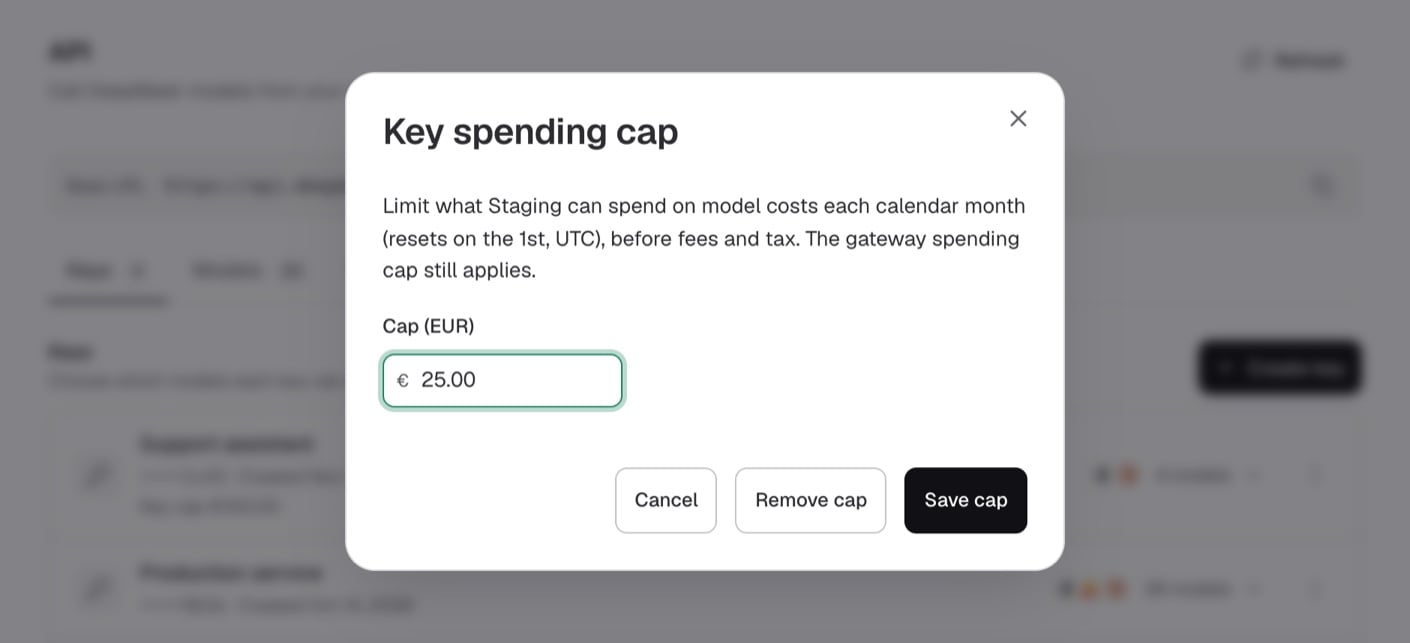
Set, change, or remove the spending cap for one key.
Edit spending cap is unavailable while a key shows Pending or Revoking. Revoked keys can’t have a cap.
Rules for key caps
- A key cap uses the same format as the Gateway spending cap: a positive amount in euros with up to two decimal places.
- A key cap can’t be higher than your current Gateway spending cap. If you enter a higher amount, you see “A key cap can’t be more than the gateway spending cap (€100.00).” The amount in parentheses is your current Gateway spending cap. When you edit a key’s cap, Save cap stays disabled until you enter a lower amount.
- Each key cap is checked against the Gateway spending cap on its own. Your key caps can add up to more than the Gateway spending cap, but the organization-wide cap still stops all keys once their combined spend reaches it.
- Key caps reset at the same moment as the Gateway spending cap: 00:00 UTC on the 1st of each month. A key’s first period runs from when it was created until the next 1st.
- Every key tracks its spend for the month, even without a cap. Adding, changing, or removing a key cap keeps the key’s spend so far this month and its reset date.
- If you add a cap below what the key has already spent this month, its requests are refused right away. The key list shows a key’s spend only once it has a cap.
How the key list shows cap usage
Keys with a cap show an extra line under their name on the Keys tab:
Lowering the Gateway spending cap doesn’t change existing key caps. Keys whose cap is now higher than the organization-wide cap show limited by the gateway cap until you adjust one of the two caps.
How the two caps work together
DeepMask checks both caps on every request. Whichever cap is reached first blocks the request.- When a key reaches its own cap, only that key is refused. Your other keys keep working.
- When your keys together reach the Gateway spending cap, every key is refused, including keys that still have room under their own cap.
What a blocked request looks like
When a cap blocks a request, the API returns HTTP400 or 429 with the standard DeepMask error body. The code field tells you which cap was reached:
Check
error.code, not only the HTTP status, because invalid requests also return 400 and rate limits also return 429. The message text is the same for every error. With stream: true, a cap refusal arrives as this JSON error before any stream starts.
The examples below tell the two cap refusals apart. The cURL example prints the HTTP status after the response body. The Node.js example uses top-level await, so run it as an ES module, for example a .mjs file.
Are blocked requests billed?
No. A cap refuses the request before any model runs, so nothing is charged. Blocked requests don’t count toward the billed requests on the Usage tab. Requests that were already running when a cap was reached finish normally and are billed. That is why spend can end slightly above the cap.Troubleshooting
Requests are refused withAPI_SPENDING_CAP sooner than you expected? The cap counts every key in your organization combined. Monthly API charges can also lag behind the cap. Requests that are still being priced or checked aren’t in it yet, and the page doesn’t refresh by itself, so click Refresh for the latest figures. Just after 00:00 UTC on the 1st, requests can still be refused for a few minutes until the reset takes effect. Check the Request log for Blocked: gateway cap entries, then raise the cap on the Billing tab or wait for the reset.
Only one app stopped working? Check that key’s row on the Keys tab. If it shows Key cap reached, raise or remove the key’s cap.
You can’t save a key cap? The key cap is probably higher than your Gateway spending cap. Raise the Gateway spending cap first, or choose a lower key cap.
You need a cap above the maximum? The Maximum cap shown under the field is the highest Gateway spending cap you can set yourself. To raise it for your organization, contact support.
Edit spending cap is unavailable? The key is still being set up (Pending) or is being revoked (Revoking). See API keys for what each key status means.
Requests are refused with a 429 error? Check error.code. A 429 with API_SPENDING_CAP or API_KEY_SPENDING_CAP means a spending cap was reached. Any other 429 code comes from a rate, token, or concurrency limit, or from a model’s capacity limit. See 429: rate and capacity limits for what each code means, and Limits and fair use for each limit’s value.
Related pages
API keys
Create keys, choose their models, and set a cap when you create them.
Usage and logs
Track monthly charges and find blocked requests in the request log.
Billing
Enable API billing and understand what your monthly invoice includes.
Errors and retries
Handle error codes and learn which errors to retry.
Limits and fair use
See every rate, token, and budget limit in one place.