

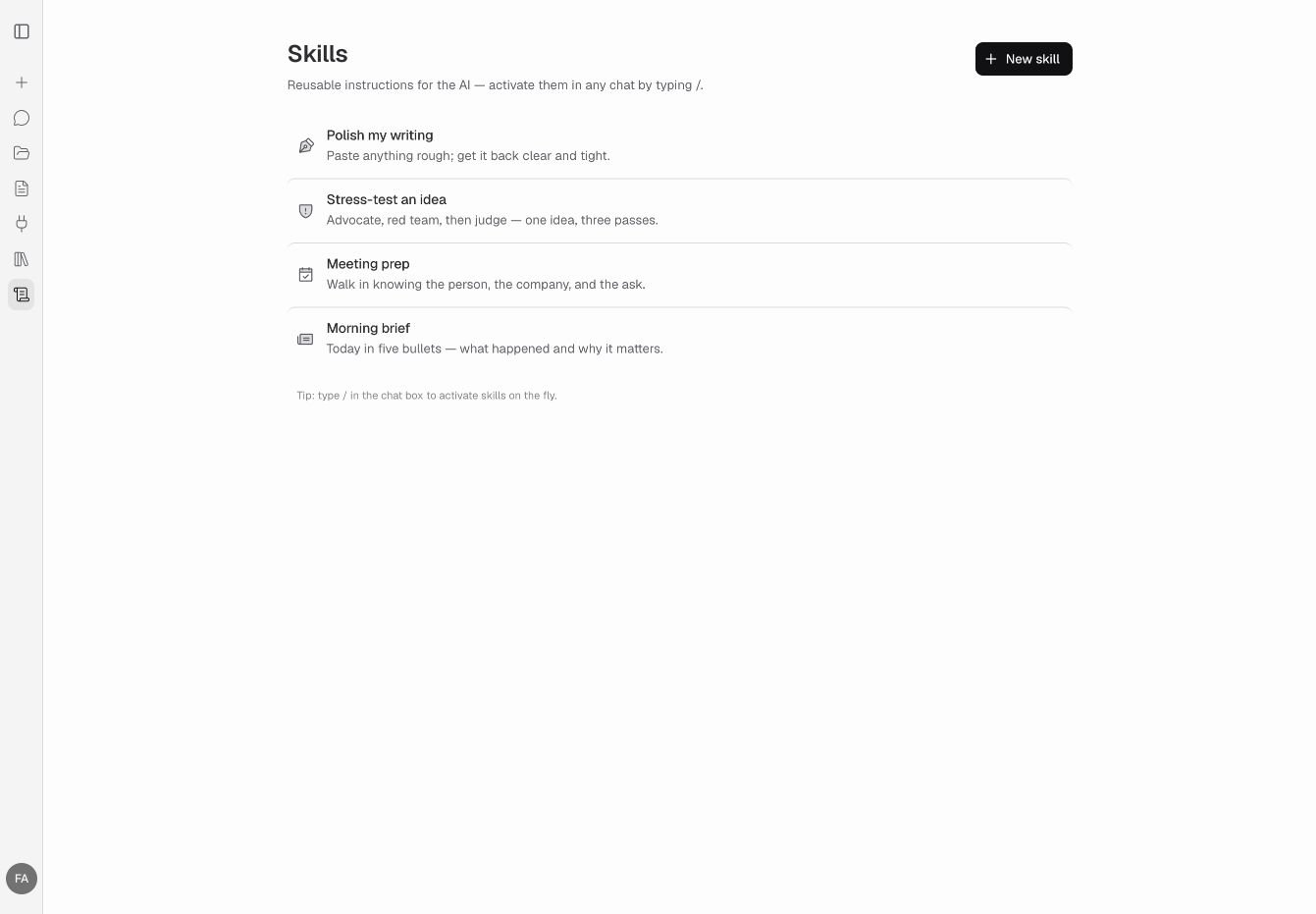
Create and manage reusable instructions from Skills in the main app.
Creating a skill
1
Open Skills
Click Skills in the main sidebar, then select New skill.
2
Give it a name
Choose an icon and enter a unique name. DeepMask suggests a Slash command from the name, such as
meeting-prep. You can edit this to make the skill easier to find in chat.3
Write your instructions
Describe what the AI should do and how you want the answer structured. Include preferences for tone, length, or information to include.
4
Choose optional settings
Add Workflow steps, review the Connectors, or choose a preferred Model. Leave the model on Any model to use whichever model is selected in chat.
5
Save your skill
Keep Enabled checked and click Save. Your skill is now available in the chat’s
/ menu.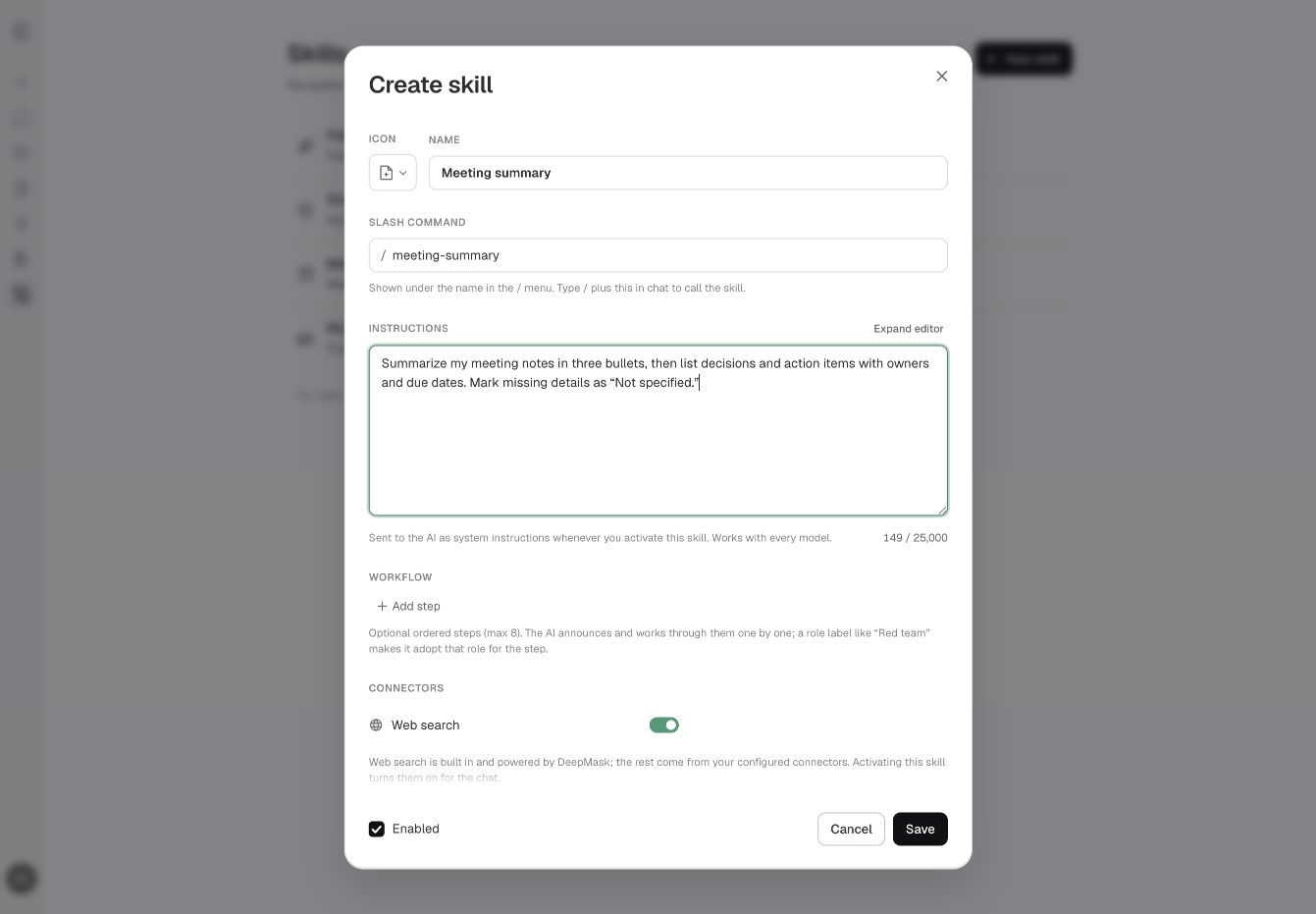
Give your skill a name, slash command, and clear instructions.
Using a skill in chat
1
Find your skill
Type
/ in the chat input. Continue typing the skill’s name or slash command to filter the list.2
Select the skill
Click a matching skill. A card above the input shows which skill is active.
3
Send your request
Write your message and provide any text or files the skill needs. Send the message to get a response guided by your saved instructions.
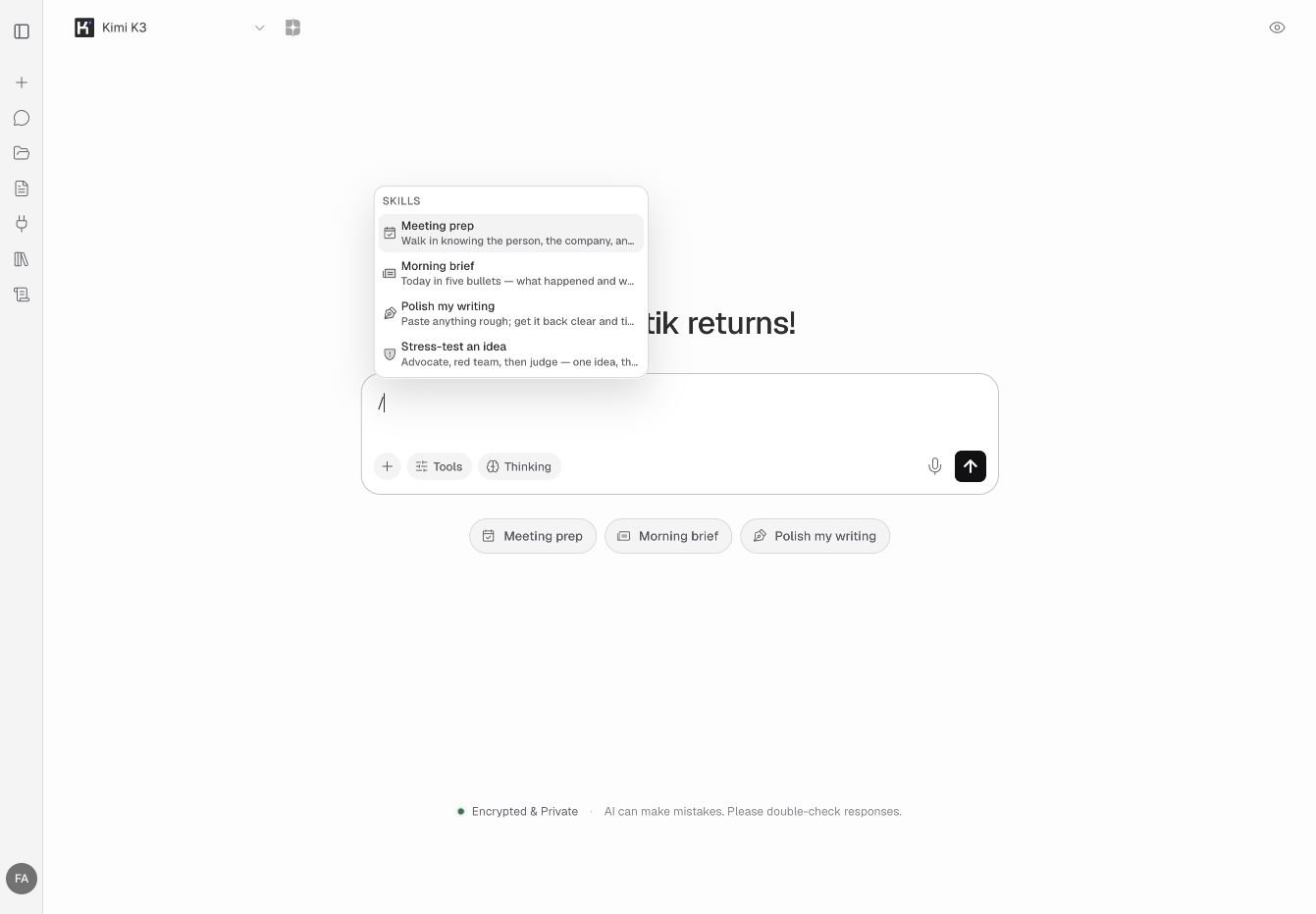
Type / in chat to find and select an enabled skill.
You can use one skill at a time. Selecting another skill replaces the current selection. Choosing a skill from the
/ menu does not send a message until you submit your request.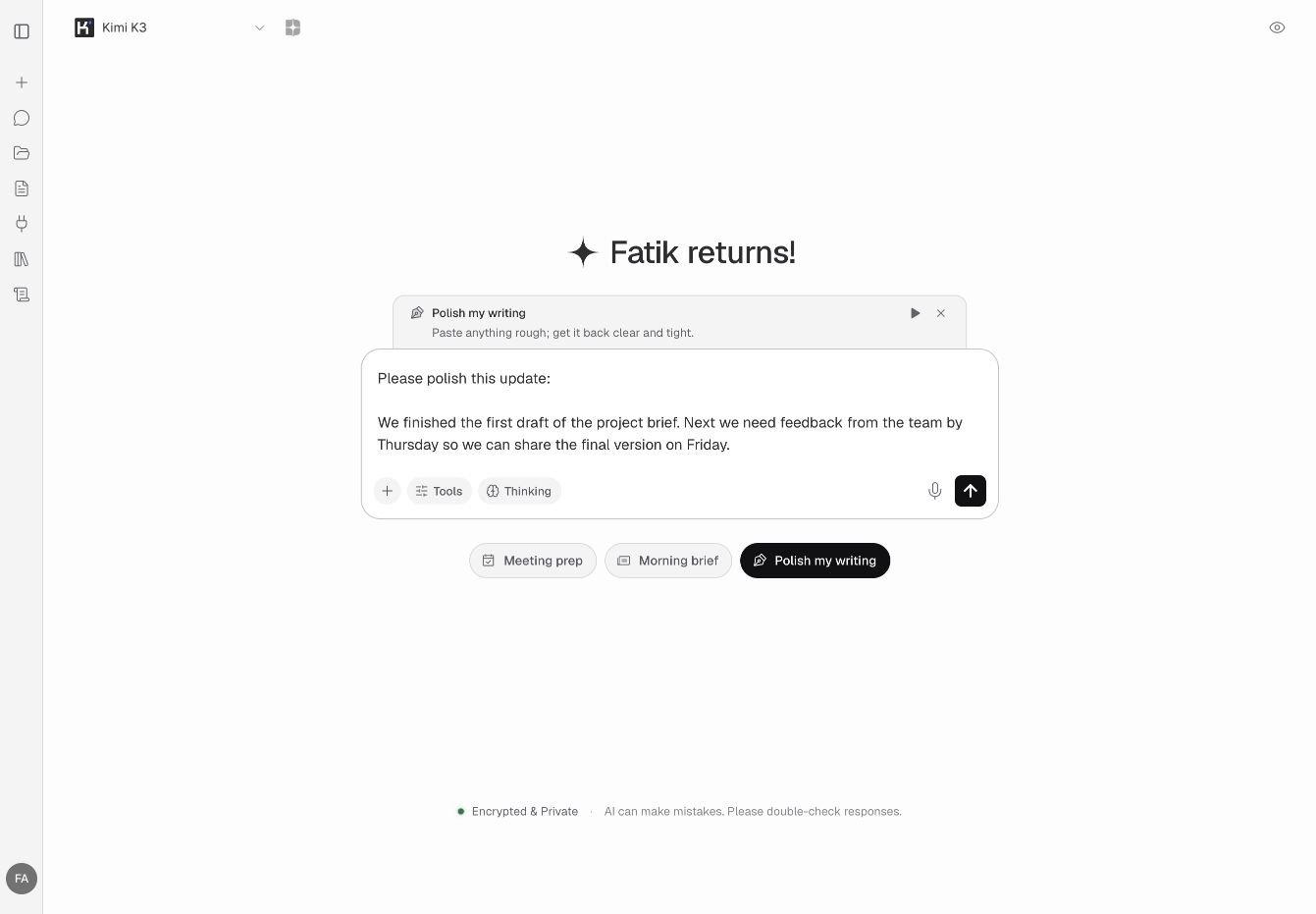
The active skill appears above your message, with run and remove controls.
Running a skill immediately
You can also start a skill directly from the Skills page. Hover over a skill and click its play button. DeepMask opens chat and sends a message asking the AI to run the skill. You can also use the play button on the active skill card above the chat input.Adding workflow steps
Use a workflow when a task benefits from several passes. Each skill can include up to eight steps, with an action and an optional role for each step. In the skill editor, click Add step under Workflow. Describe the action, then add a role such as “Editor” or “Reviewer” if you want the AI to approach that step from a particular perspective. For example, a skill that reviews an idea could use:
The AI is instructed to work through the steps in order and announce each step as it goes. A role tells the AI which perspective to take for that part of the task.
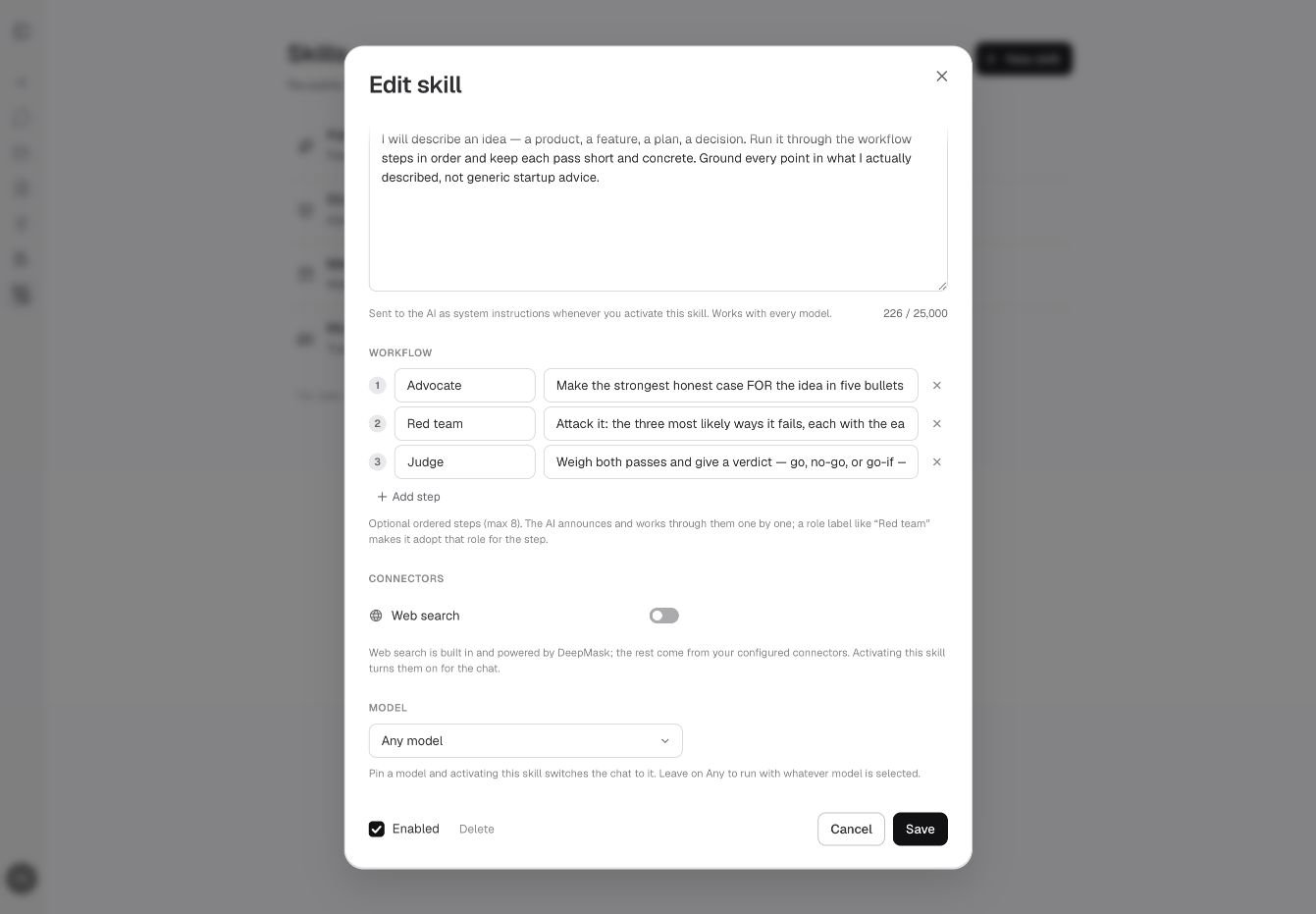
Give each workflow step an action and an optional role.
Choosing a model and connectors
Model
Select a preferred model in the skill editor to switch to it when you activate the skill. Leave Any model selected to keep your current chat model. If your preferred model is unavailable, chat keeps its current model.Connectors
Review the tools your skill needs under Connectors. Web search is available by default and is selected for new skills. Activating a skill with Web search selected turns on web search in chat. Other connectors appear from your enabled connections. Set up and manage those connections through MCP Connectors.Removing a skill keeps the chat’s model and Web search settings as they are. A skill with Web search unselected also leaves an existing chat toggle unchanged. You can adjust these settings directly in chat.
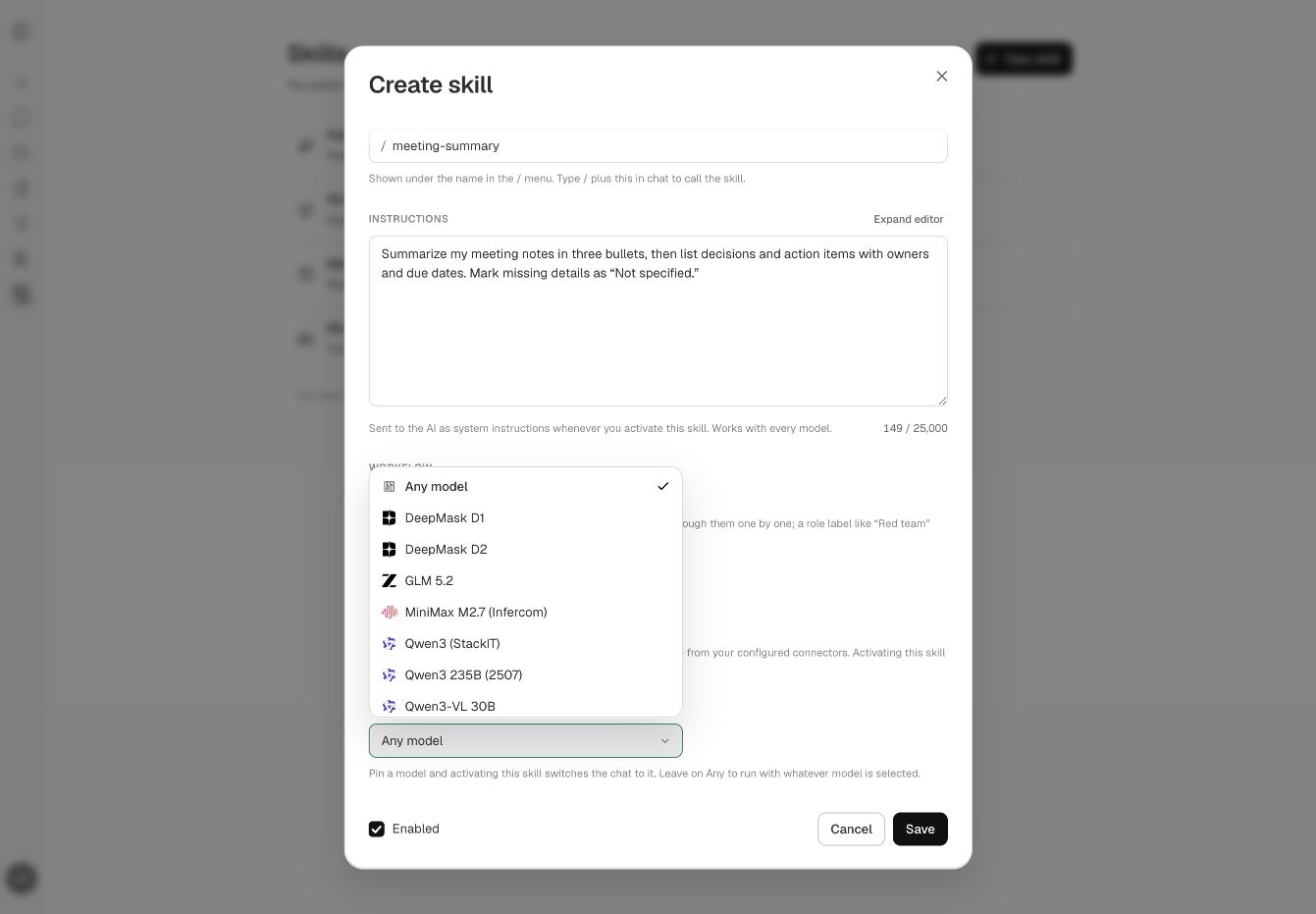
Keep Any model selected or choose a preferred model for your skill.
Managing your skills
- Edit: Click a skill on the Skills page, update its instructions or settings, and select Save.
- Disable: Open the skill, uncheck Enabled, and save. The skill remains in your list with an Off label and is hidden from the
/menu. Check Enabled again to make it available. - Delete: Open the skill, click Delete, and confirm. Deleting a skill permanently removes it from your list.
Starter skills
If you start with an empty skill list, DeepMask can add these starter skills:
You can edit these skills to suit your work, disable them, or delete them. Deleted starter skills are not automatically added back.
Troubleshooting
Cannot save a skill? Enter both a name and instructions, and choose a name you have not already used. Instructions can contain up to 25,000 characters; the editor highlights text beyond the limit. Cannot find a skill in chat? Check that it is enabled on the Skills page, then type/ and search by its name.