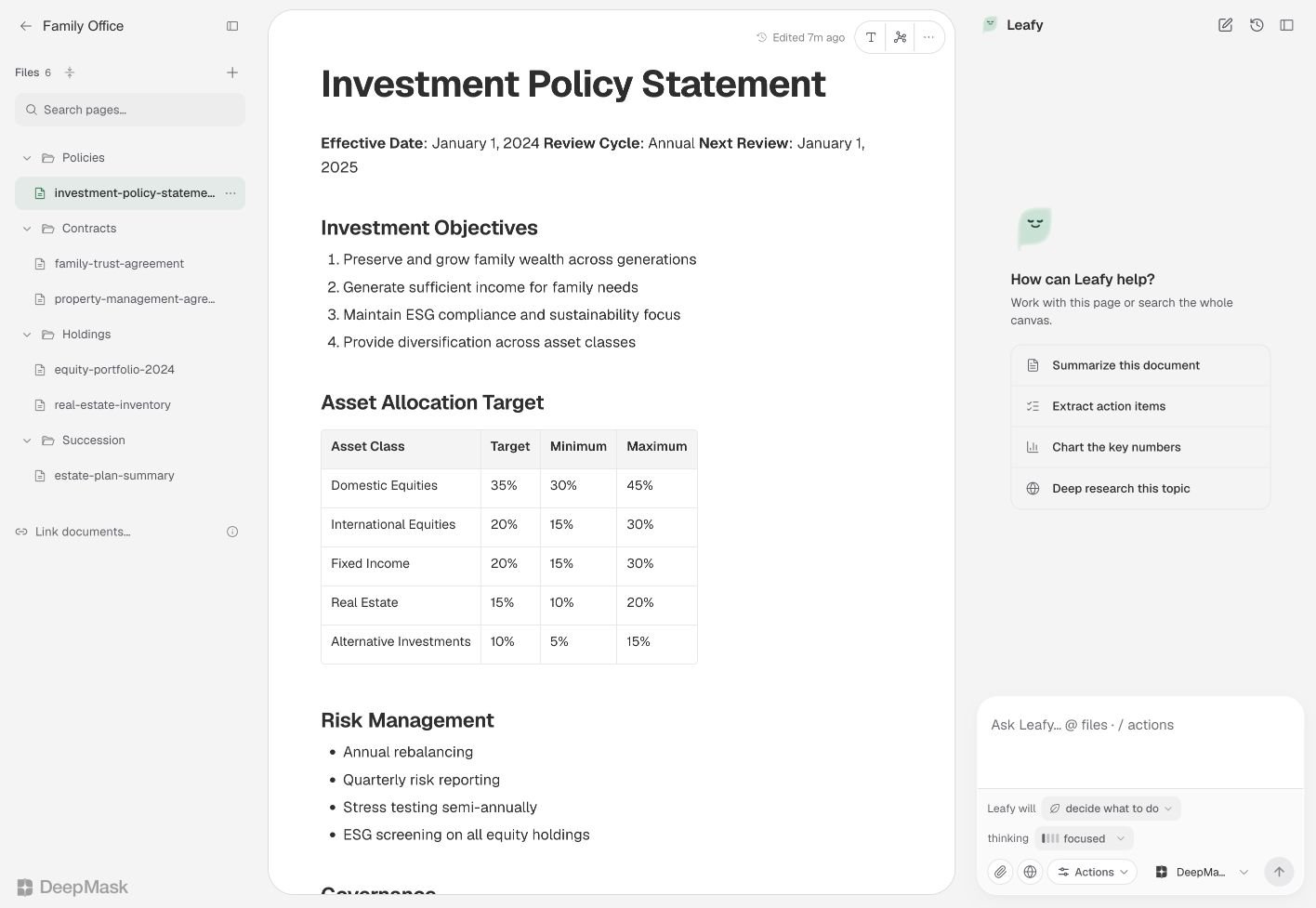
Canvas brings your documents and AI assistance into one workspace. Keep related pages together, import existing files, and link ideas across your work. Leafy, the assistant beside your document, can answer questions about your material, suggest edits, and help organize your canvas. Use Canvas for a project brief, a collection of research, meeting notes, or any body of work that needs more room than a chat.
Updated Canvas workspace with folders, an investment policy document, and Leafy.

Your canvas brings the document tree, writing surface, and Leafy together.

Use a desktop browser for the full Canvas workspace, including organizing pages and working with Leafy.

Understanding canvases and documents

Open Canvas from the main app sidebar. The home page has three tabs: A canvas is the workspace; a document or page is one item inside it. You can organize pages into folders and nested folders. Use the search box to find documents by title or folder path, or open a recently edited document.
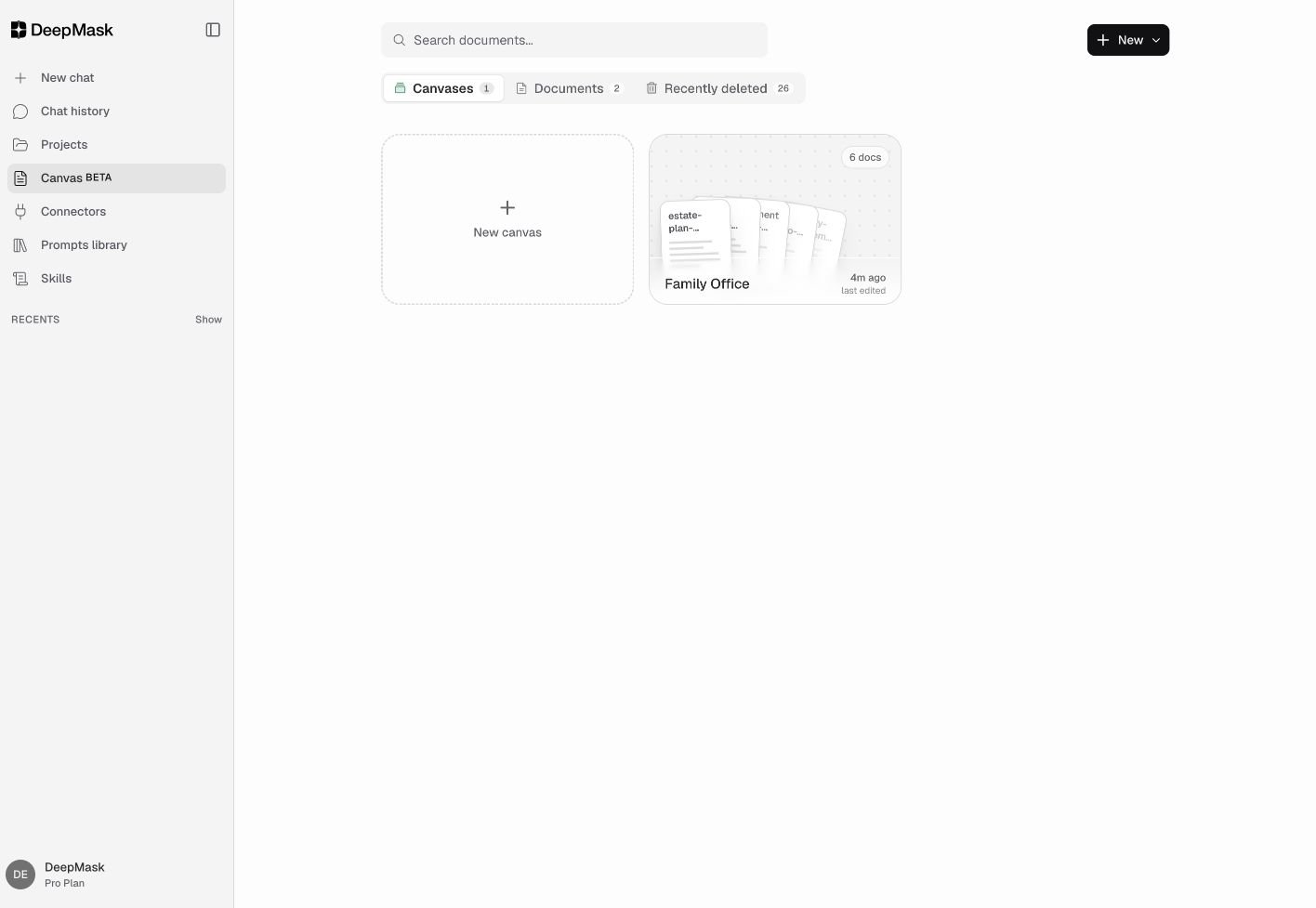
Create one canvas for each project, client, or research topic. Keeping related material together gives Leafy useful context when you ask questions across several pages.
Canvas library with workspace cards and Canvases, Documents, and Recently deleted tabs.

Canvas home separates workspaces, documents, and recently deleted pages.

Creating your first canvas

1

Create a workspace

Open Canvas and select New canvas. You can use the card on the Canvases tab or choose it from the creation menu at the top of the page.
2

Choose a starting point

Name your first document, then rename the canvas from its sidebar title. Start with Weekly update, PRD, Proposal, Meeting notes, or Blank. Choose Import if you already have files to bring in.
3

Start writing

Open the document and write directly on the page. Your changes save automatically as you work. The save indicator shows when saving is in progress or when a save fails.
To capture a standalone page, choose New document instead. You can move it into a canvas later from the Documents tab using Add to canvas.
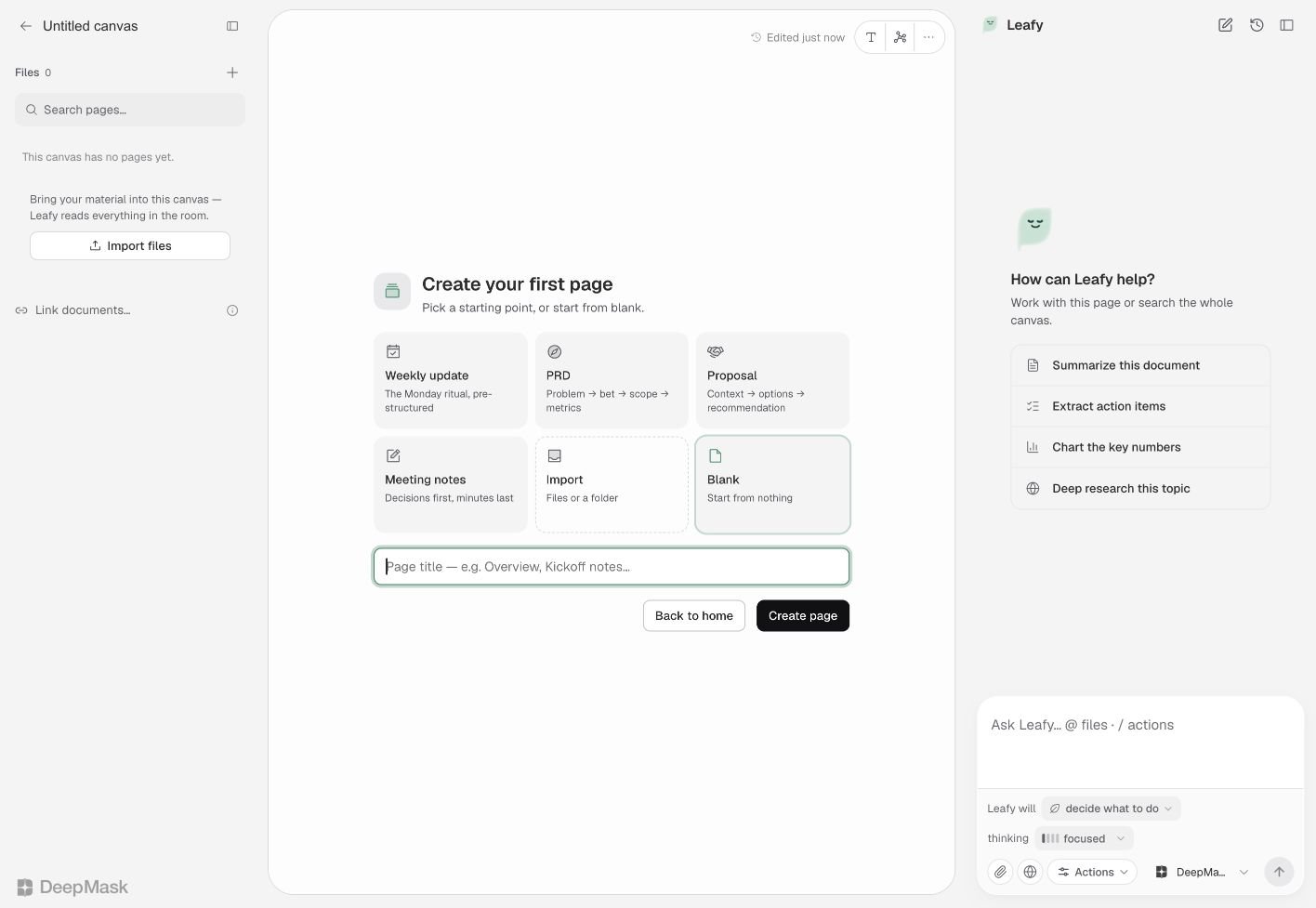
Create your first page with Weekly update, PRD, Proposal, Meeting notes, Import, and Blank options.

Choose a template, import files, or start with a blank page.

Organizing your documents

The left sidebar shows the pages and folders in your current canvas.
  • Add pages and folders using the file tree’s controls.
  • Drag a page to reorder it, or drop it into a folder to move it.
  • Open the actions menu beside a page or folder to rename or delete it.
  • Click the canvas name at the top of the sidebar to rename the workspace.
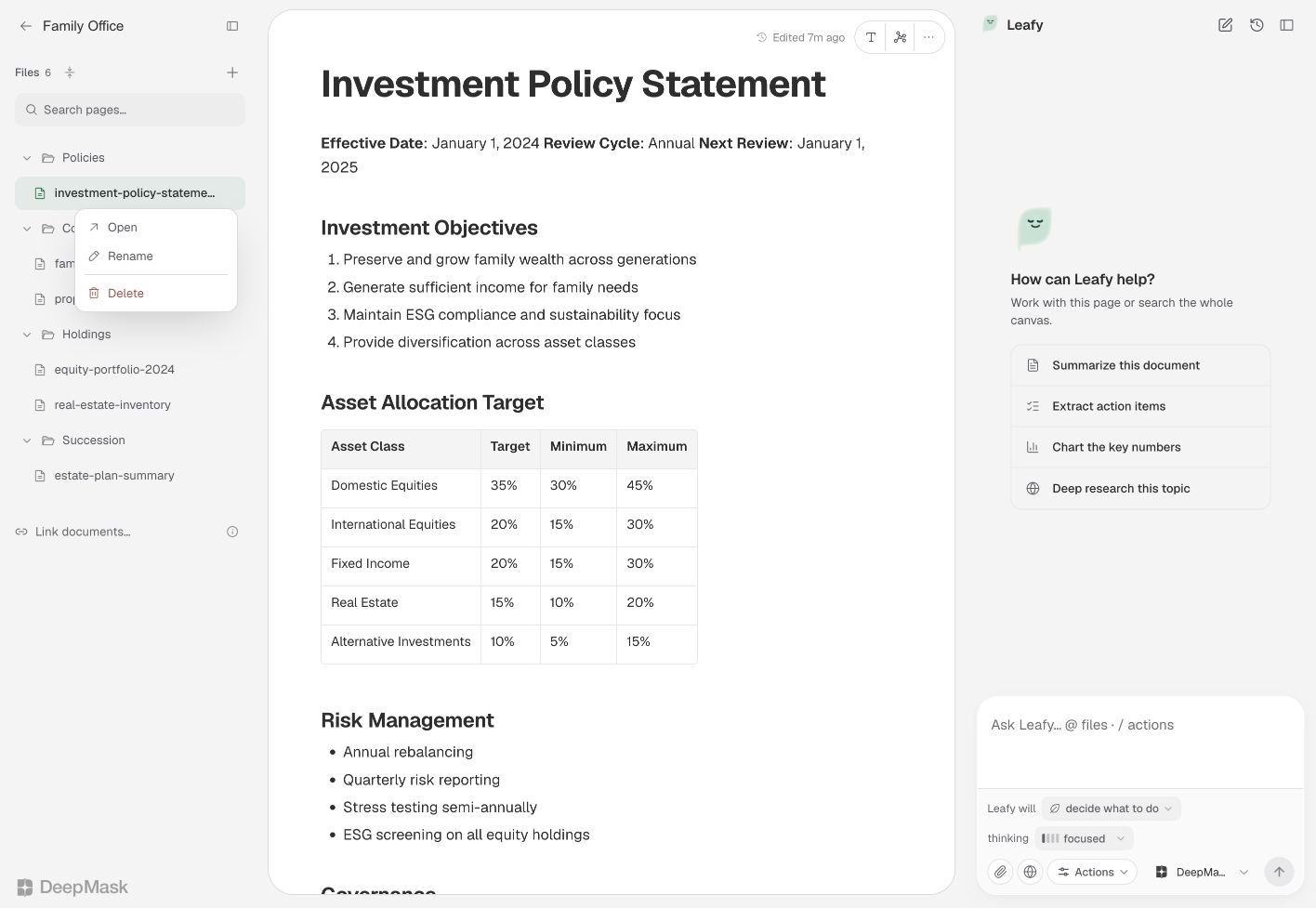
For a newly written page, its first main heading normally provides the document name. Pages named through the file tree or imported from a file keep their assigned name when the body changes.
Page actions menu with Open, Rename, and Delete.

Open the actions menu beside a page to organize it.

Writing and formatting

Write directly in the editor, use Markdown shortcuts, or open the + menu beside a block to insert content. Select text to reveal formatting options, or open Formatting tools in the top bar. You can adjust emphasis, text color, highlighting, size, and alignment. Standard keyboard shortcuts such as Cmd/Ctrl+B for bold and Cmd/Ctrl+Z for undo also work. For equations, use dollar signs around inline math, such as $E = mc^2$, or double dollar signs for a separate equation block. Open More → Theme to adjust the document’s typeface, text size, and paper appearance.
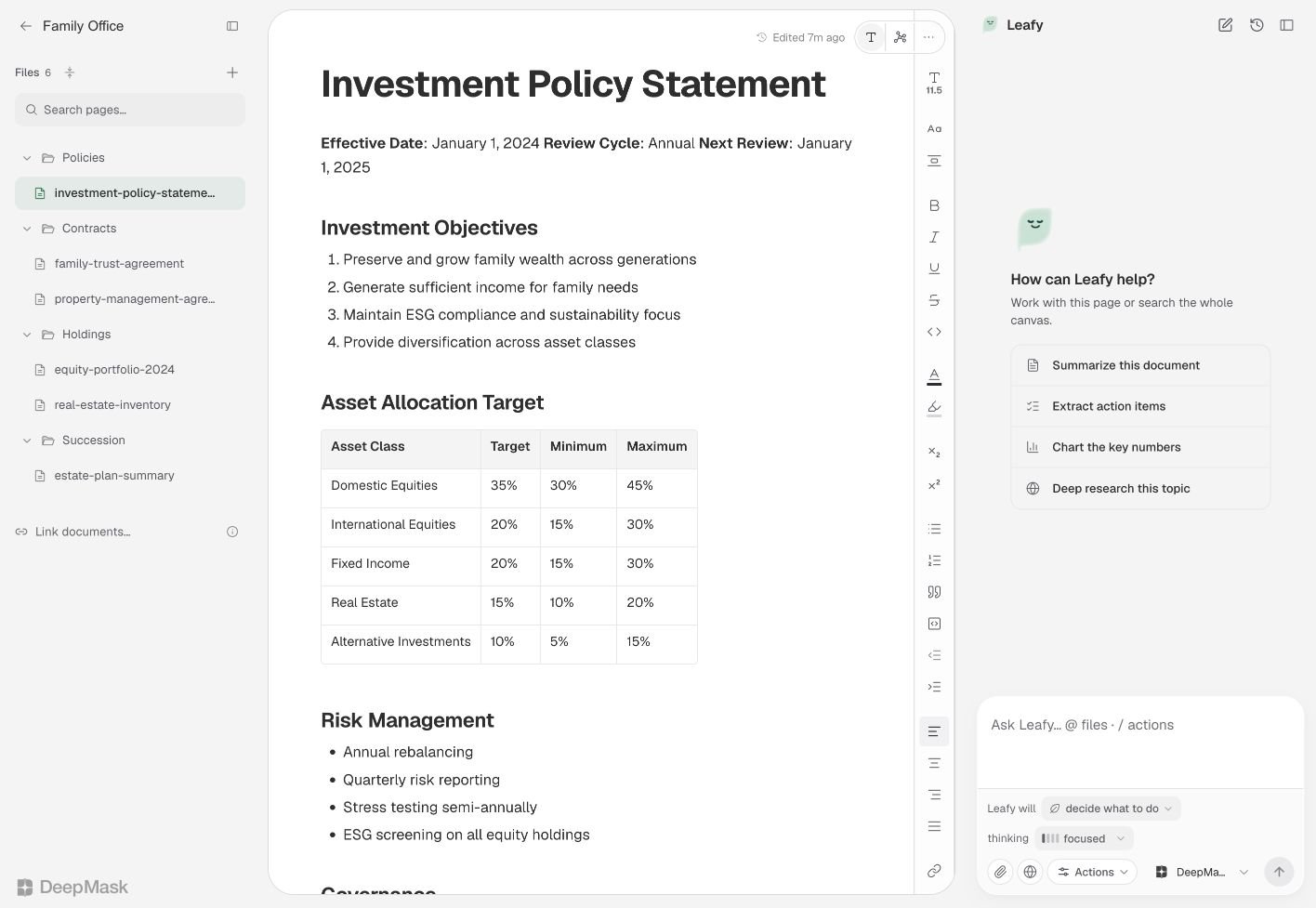
Canvas document with the formatting toolbar open beside the writing area.

Open Formatting tools to format text and insert content while you write.

Importing files and folders

1

Open the importer

In a canvas, choose Add to this canvas → Import files or a folder in the left sidebar. You can also choose Import when creating a canvas.
2

Choose your material

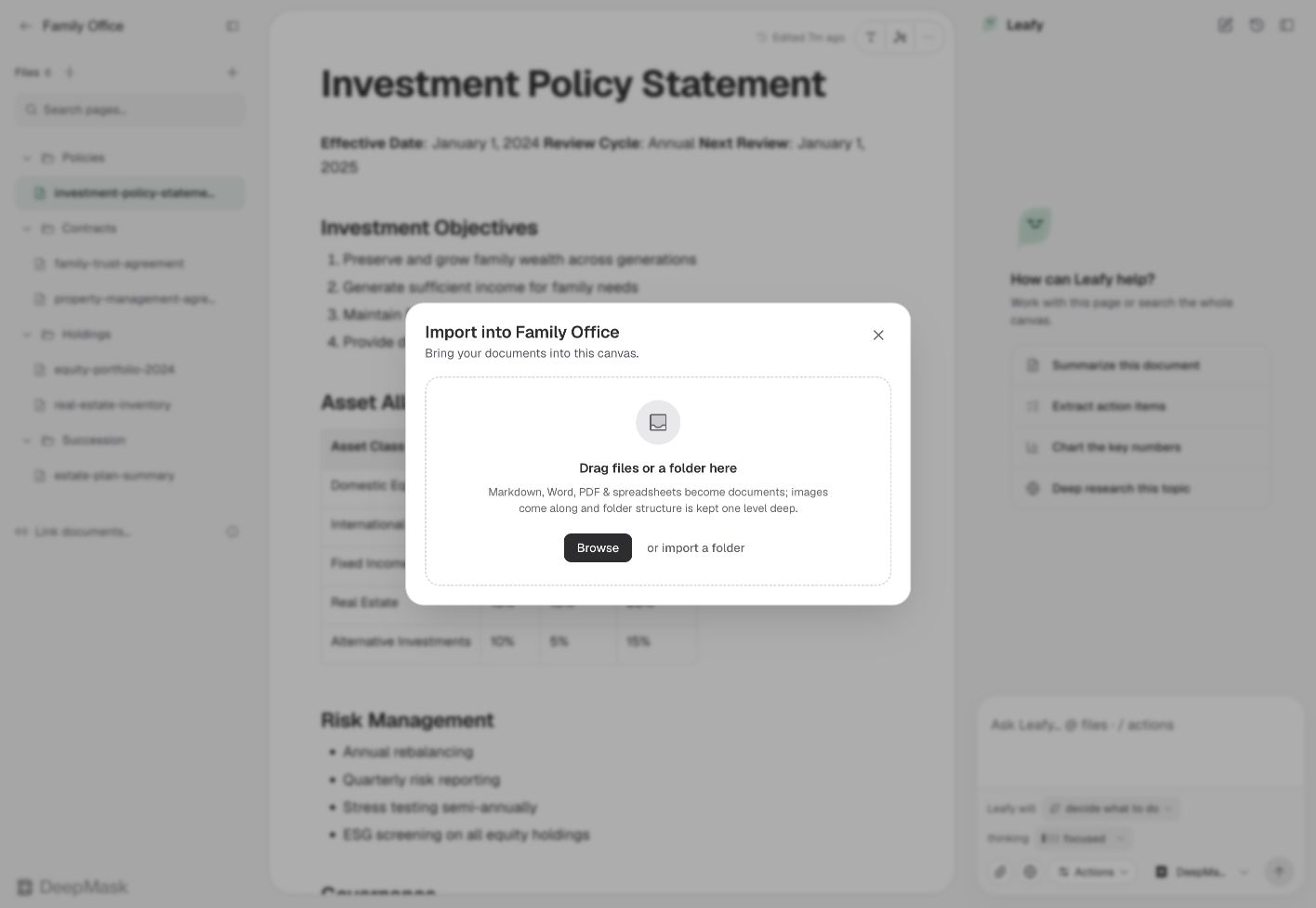
Drag files or a folder into the import window, browse for files, or choose the folder import option.
3

Choose how Office files open

For Word and Excel files, choose Convert to Markdown for editing with Leafy, or Keep the original look to use the document or spreadsheet view.
4

Review the import result

When the import finishes, review the summary for imported pages and any skipped or failed files. Open the pages from the sidebar.
Canvas supports Markdown and text files, Word documents, PDFs, and Excel spreadsheets. Imported Markdown links are matched to other pages in the same import where possible, so related notes can remain connected.
Import dialog showing drag and drop, Browse, and folder import options.

Drag in files or use the browse and folder import options.

Folder imports include files in the selected folder and its immediate subfolders. Deeper folders are skipped. You can import those folders separately, then organize the pages inside Canvas.

Word documents and spreadsheets

Convert to Markdown turns the file into an editable Canvas page. This is the most flexible option for asking Leafy to rewrite or restructure it, although some original formatting is lost. Keep the original look opens the file in a Word or spreadsheet editor. Leafy’s editing capabilities are more limited in these views. Review any proposed spreadsheet changes before accepting them.
Preserved Office files are stored in the browser where you imported them. Their original view is not automatically available on another device. Keep a separate copy of the source file.
Referenced images can be embedded during import. Images larger than 5 MB, or beyond 50 MB of embedded images in one import, are skipped. Type [[ in a page, search for a document, and select it. Click the resulting link to open that document. Links keep pointing to the same page when it is renamed. Use Link documents… in the left sidebar to search for and attach a related page. This connects the documents without inserting a link into your writing or exported document. The Linked documents list shows both links from your text and documents attached through the panel. Remove an attached document with its × button. To remove an in-text link, edit the link in the page itself.
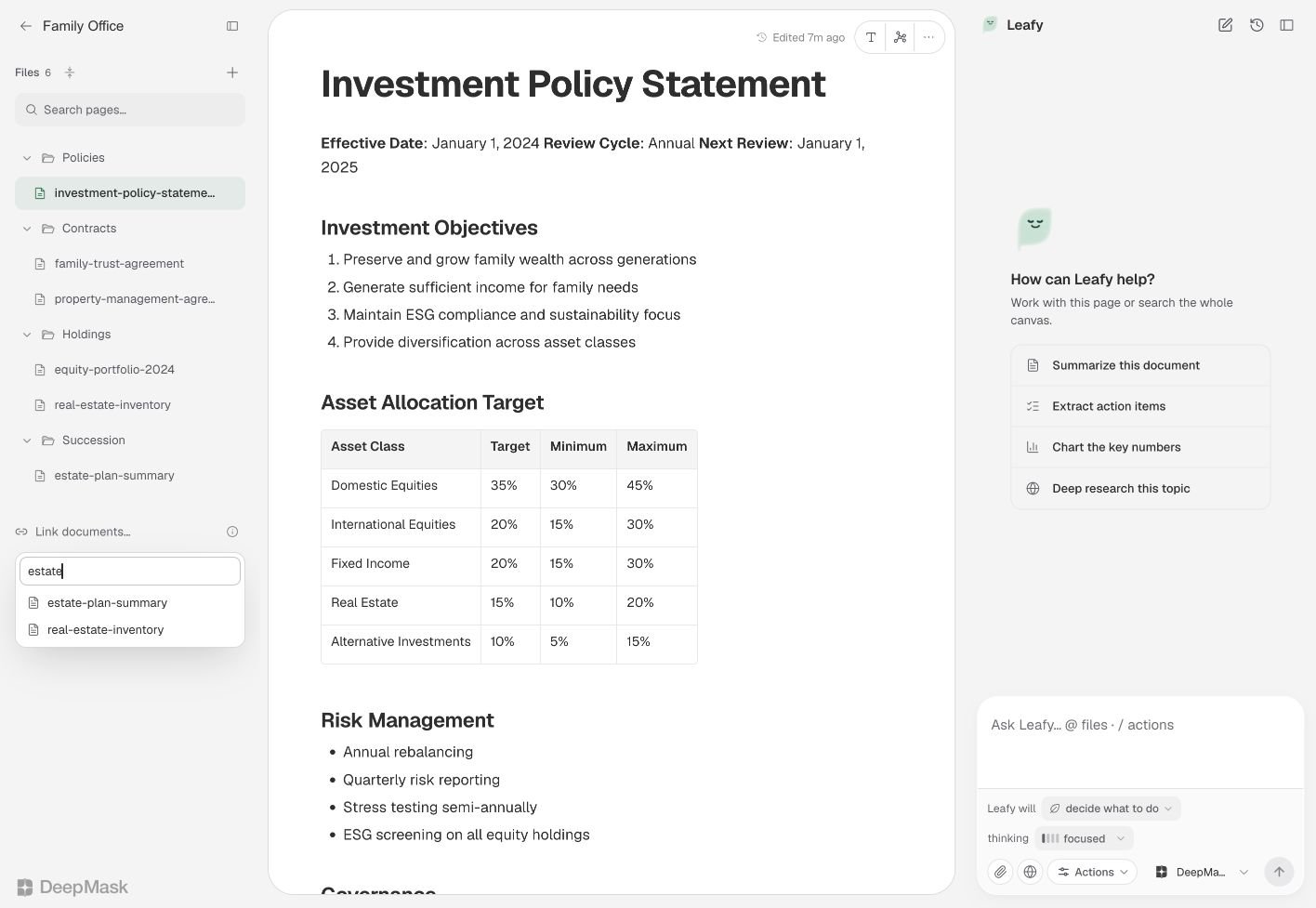
Link documents picker searching for related estate pages.

Search for a related page from the Linked documents section.

Link a proposal to its research, a decision to the notes behind it, or a meeting summary to the project brief. These connections make it easier to revisit the context later.

Exploring the knowledge graph

Click Knowledge graph in the top bar to see pages and their connections visually. Pages appear as nodes, with lines showing the links between them. Pan and zoom to explore the graph, or use the fit control to bring it back into view. Select a page to preview it, open it, or use Ask to focus Leafy on that page and its linked neighbors. The graph can help you spot groups of related pages and documents that have few connections. Click Back to document to return to your writing.
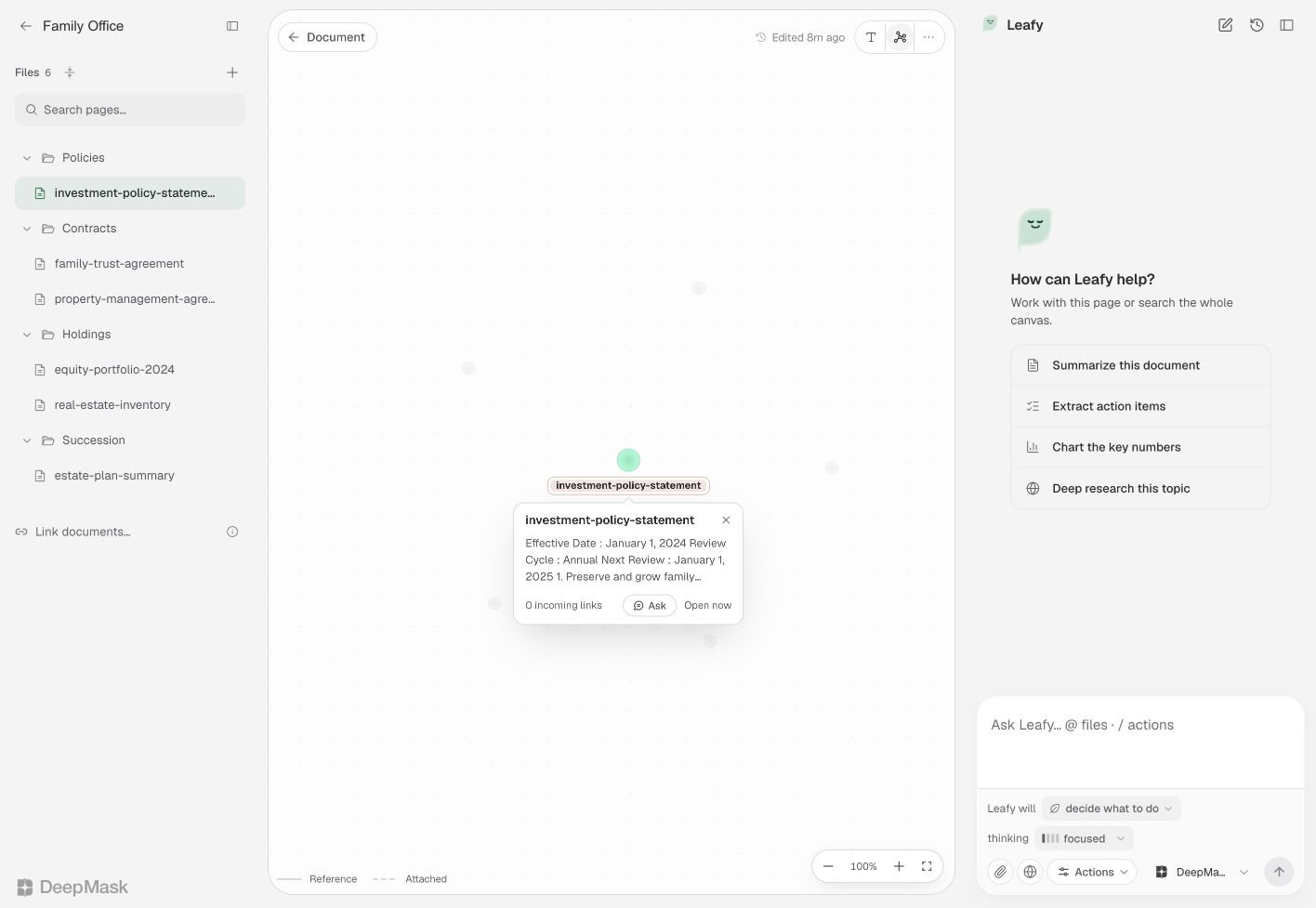
Knowledge graph with a selected document preview and Ask control.

Select a document in the graph to preview it and ask Leafy about it.

Asking Leafy about your work

Open Leafy beside the document and send a question. Leafy can search and read pages in the current canvas to find relevant information. For example:
  • “Compare the three vendors in this canvas and list the main tradeoffs.”
  • “What questions are still unanswered in our research?”
  • “Summarize the decisions across these meeting notes.”
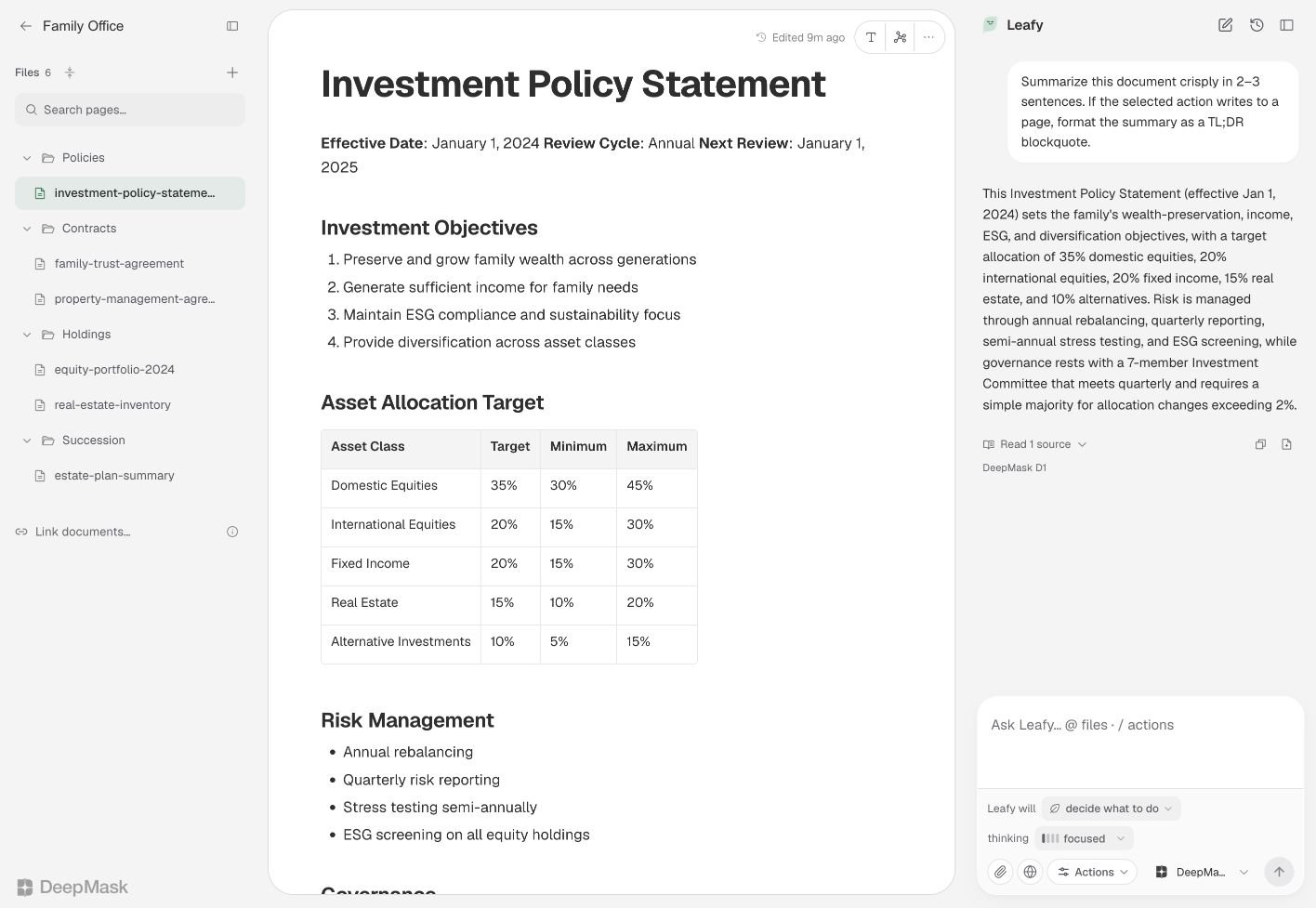
Each canvas keeps its own Leafy conversation. You can switch documents within the canvas while continuing that conversation, and choose a model from the Leafy panel.
Leafy summarizing the open investment policy document.

Ask Leafy about your material while keeping the document in view.

Focus on specific material

Drag a page or folder from the sidebar into Leafy’s input to focus the request on that material. The input shows the active focus, which you can remove when you want to work more broadly again. Use the Linked control, when available, to include documents linked to the current page. For outside reference material, attach a supported document to your message.
Leafy accepts up to five document attachments per message, with a maximum of 10 MB per file. Image attachments are not supported in Leafy’s chat, although you can place images in a Canvas page.
If Leafy needs more direction, it may present a question with choices. Select an answer to help it continue. Use New conversation to start a fresh conversation in the canvas while keeping your documents.

Editing with Leafy

1

Choose what to change

Select a passage to request an edit to that text. Leave text unselected when you want Leafy to work on the whole page.
2

Describe the result

Ask for a concrete change, such as “Shorten this paragraph to two sentences” or “Reorganize this memo so the recommendation comes first.”
3

Review the proposed text

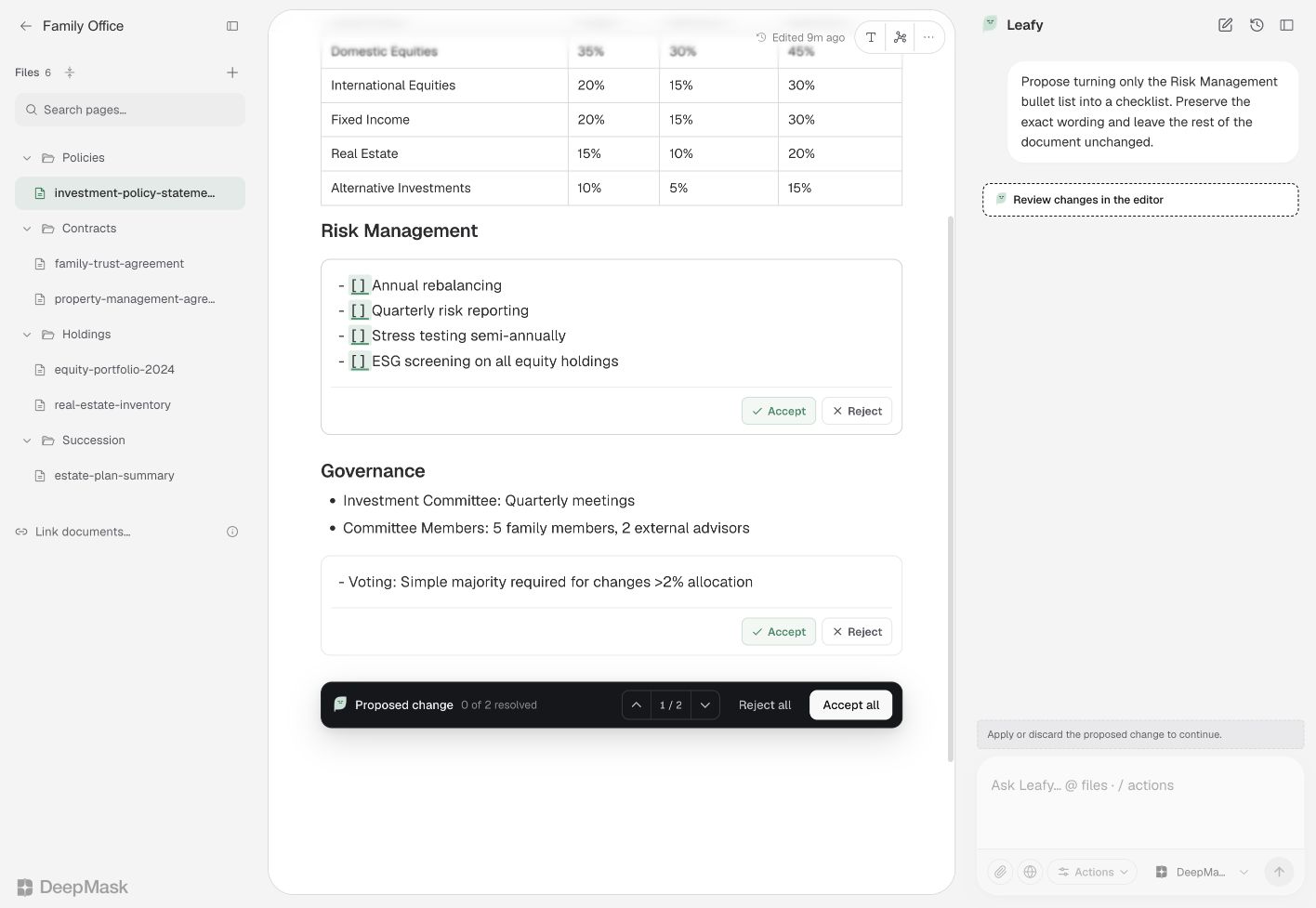
Canvas highlights additions and removals in the document. Read the changes before deciding which to keep.
4

Accept or reject

Accept or reject individual changes, or use the controls to accept or reject the whole proposal.
You can revisit an applied AI change using Revert in the conversation. Reverting returns to the document state saved before that turn, so check whether you have made later changes you want to keep.
Text rewrites use the review flow. Some image-only adjustments, such as resizing or alignment, can apply directly.
Leafy edit proposal with highlighted document changes and review controls.

Review highlighted edits before accepting or rejecting the proposal.

Organizing a canvas with Leafy

Leafy can also propose changes to the structure of your workspace: creating folders and pages, filling pages with content, moving pages, and renaming items.
1

Describe the organization you want

For example: “Organize these research pages into Vendors, Meeting notes, and Decisions, then create a summary page.”
2

Preview the plan

Proposed changes appear in the sidebar as dashed preview rows. Open a proposed page to read its content before applying it.
3

Choose what to keep

Use Apply all to accept the plan or Skip to dismiss it. You can also accept or skip individual changes and groups.
If a page depends on a proposed folder, accepting the page also includes the folder it needs. You can undo an applied plan or revert it from the conversation.

Restoring an earlier version

1

Open version history

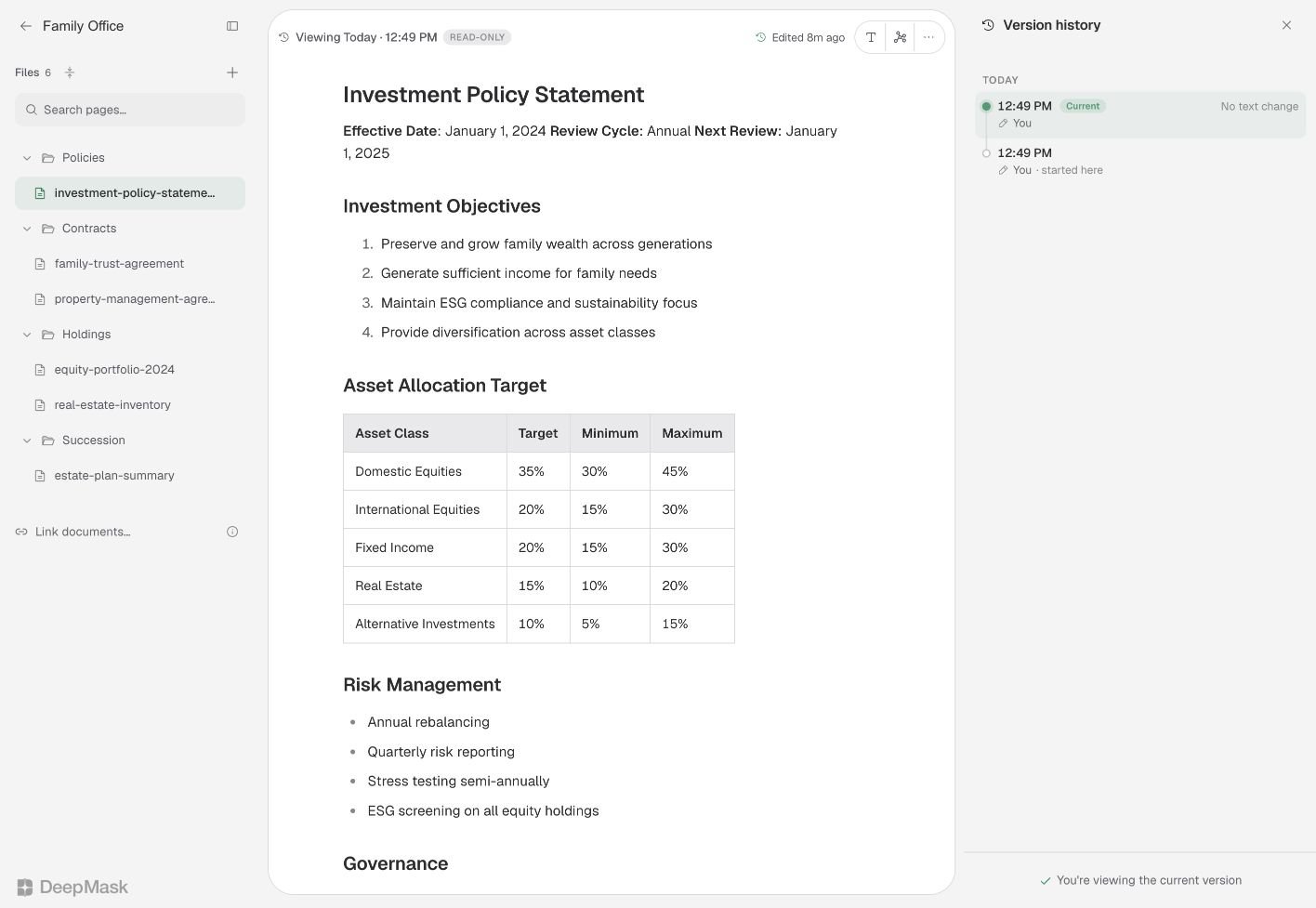
Click the Edited… indicator in the document’s top bar.
2

Review a version

Choose an entry to see the earlier content and highlighted changes. Your edits and Leafy’s edits appear in the history.
3

Restore the page

Select Restore to return to the chosen version. The restore is recorded as another version.
Recent typing is grouped into checkpoints, and AI edits receive separate entries. Canvas keeps up to 100 versions per page.
Version history is stored in your browser and does not sync between devices. Clearing browser storage can remove it. History captures the Canvas page content; it is not a full version archive of the preserved Word or Excel file.
Version history panel showing the current version and the starting checkpoint.

Open version history from the document’s Edited indicator.

Recovering deleted pages

Open Recently deleted on the Canvas home page and select Restore beside a page to bring back its saved content. Restoring creates a new page, so links that pointed to the deleted page may need to be connected again. Use Delete forever only when you no longer need the saved copy.
Recently deleted is kept in your browser, has limited storage, and does not sync between devices. Use it for recovering recent mistakes. Move work you want to retain into an Archive folder and export important documents.

Exporting your work

Open More → Export in the document’s top bar and choose a format: Review the exported result when your page includes complex formatting, equations, or imported Office content. The Canvas export and the original source file can have different layouts.
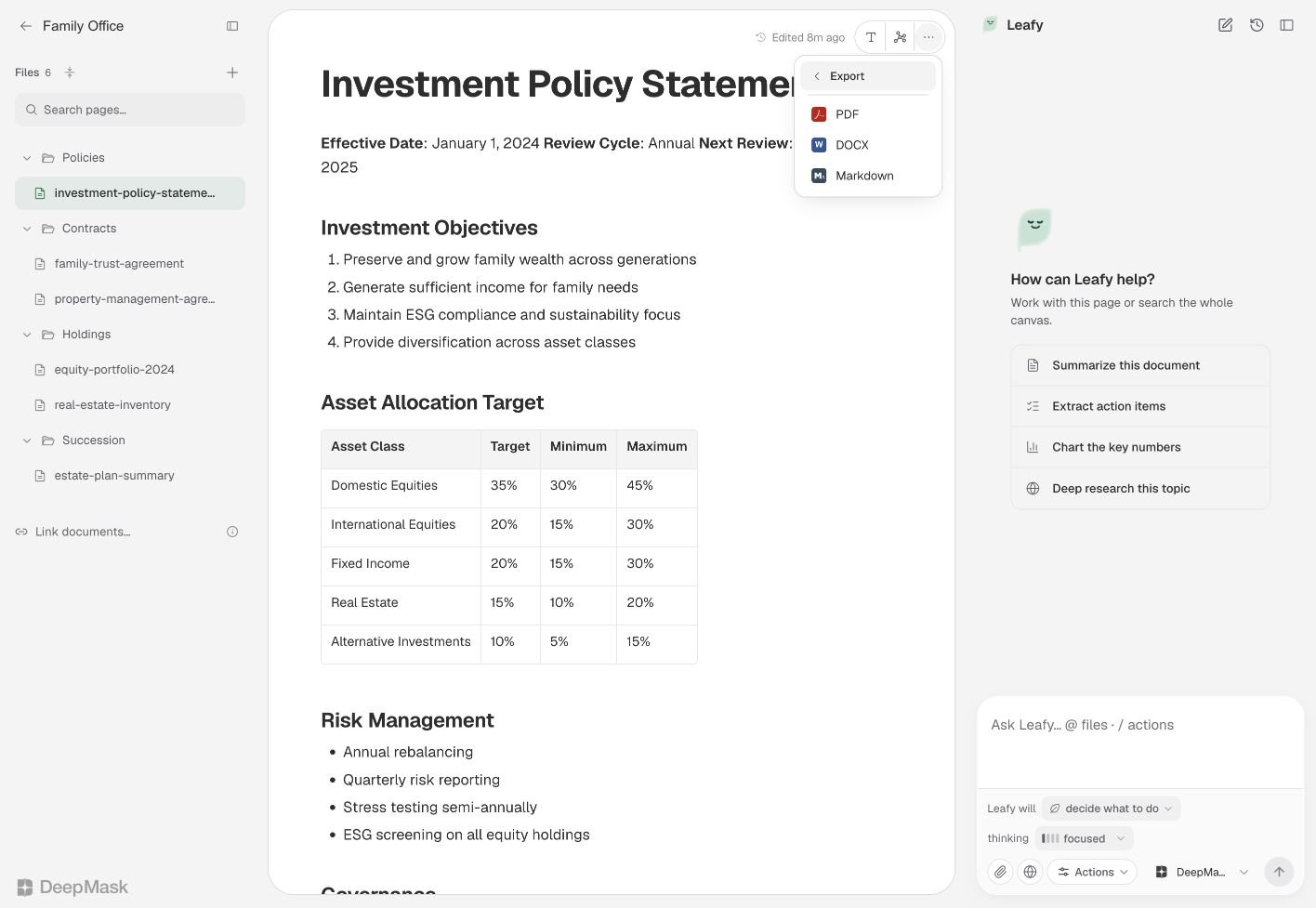
Canvas Export menu displaying PDF, DOCX, and Markdown formats.

Choose PDF, DOCX, or Markdown from the Export menu.

Troubleshooting

Changes are not saving? Check the save indicator and your connection before closing the page. If saving fails, keep the page open and preserve a copy of your text. Some imported files are missing? Review the import summary. Unsupported files, deeper subfolders, and images above the import limits may be skipped. Leafy is using the wrong material? Check the page or folder shown in the input’s focus indicator. Name the documents you want it to use and include the relevant references. History or deleted pages are missing on another device? Open the browser where you edited or deleted the page. Those recovery copies are stored there.